
Evaluate Results
After the Flow Analysis block runs, you can evaluate your results using the Right Side Panel, heads-up display, and display block.
Results Display
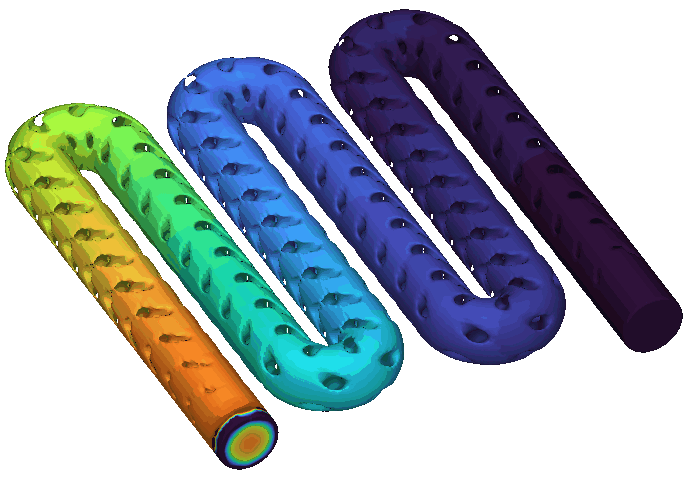
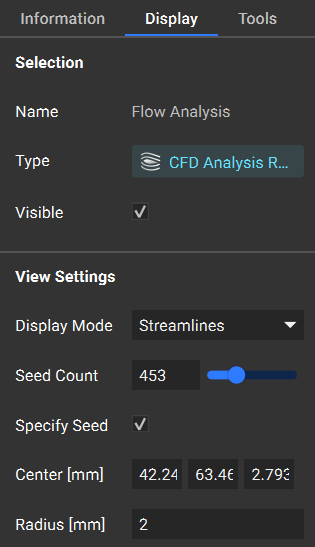
Use the Display tab in the Right Side Panel control how you view results. You can toggle the Display Mode to visualize the results as a color gradient as a domain or as individual streamlines. These streamlines are calculated on the time averaged velocity results.
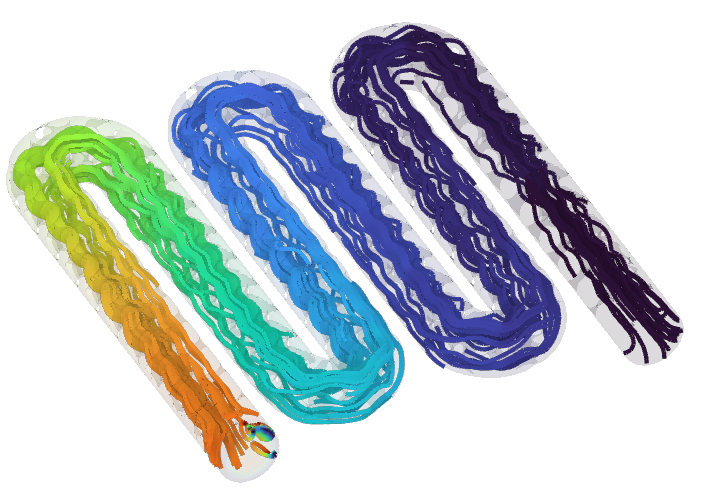
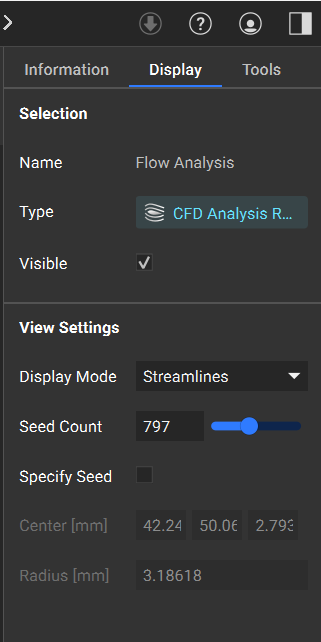
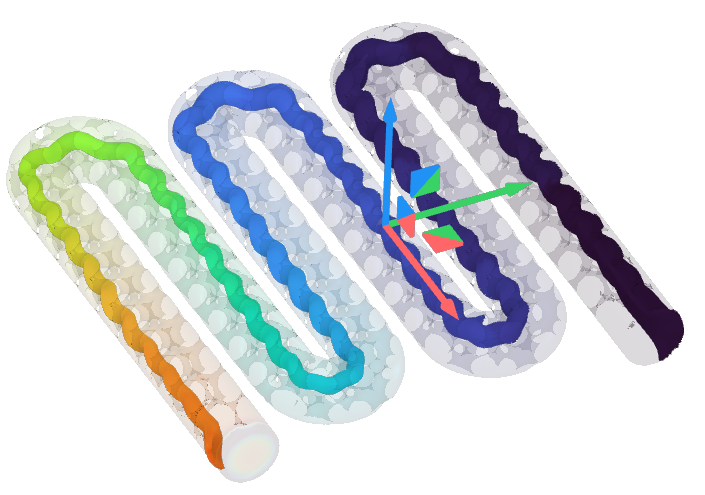
Say, when displaying results as streamlines, you want to see how fluid behaves in a specific region. Check Specify Seed to define a region, and visualize the upstream and downstream behavior of only the fluid that passes through the specified region. You can imagine this as placing a drop of dye into a specific location to visualize its behavior in your domain.
View CFD Results
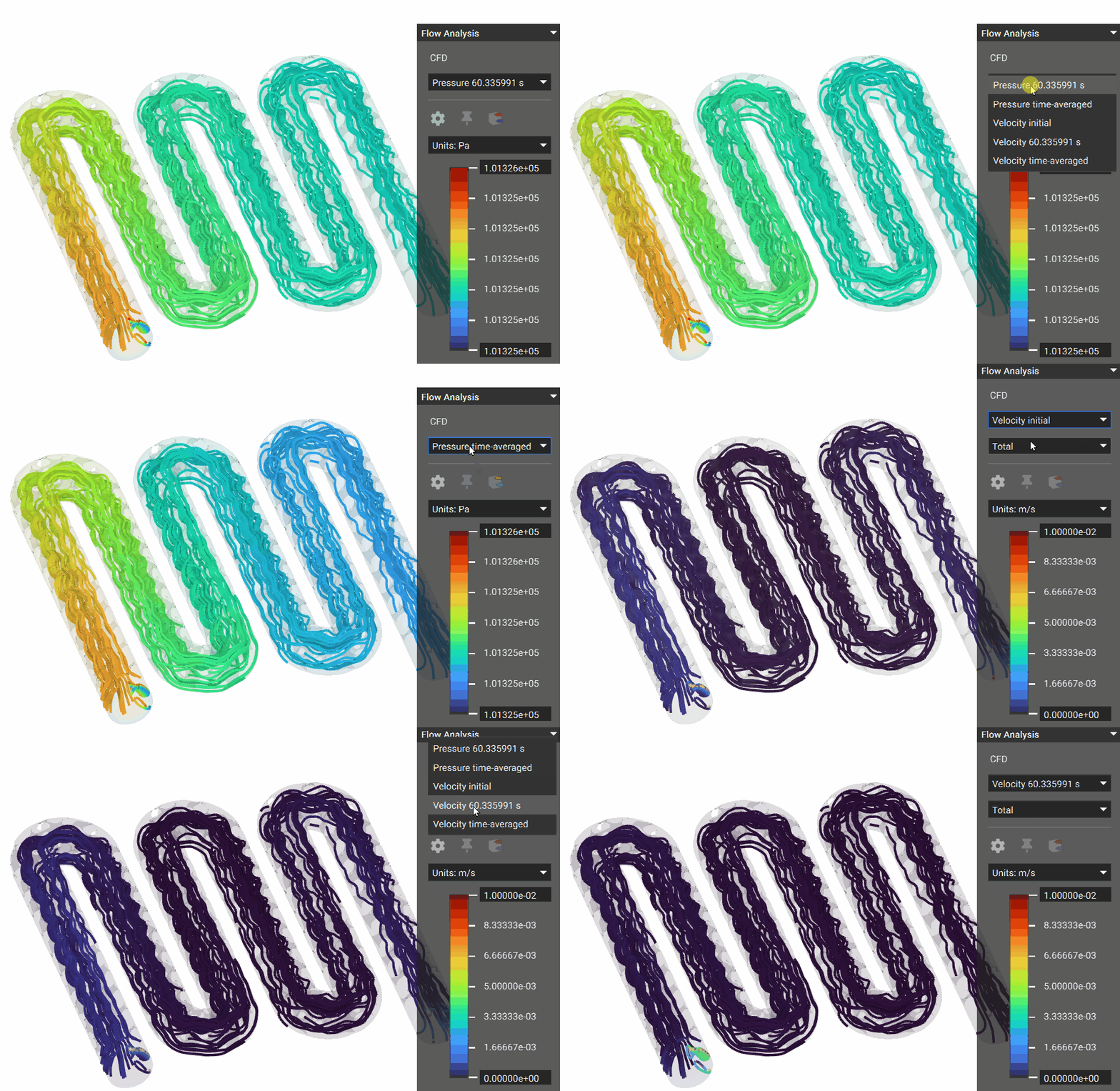
Used the heads-up display to view the initial, instantaneous, and time-averaged pressures and velocities.
- Instantaneous results show the results at the moment the analysis reaches a statistically steady state.
- Time-Averaged results show averaged velocity and pressure throughout the analysis.
Flow Analysis Results on Boundary
To evaluate results on a specific boundary , you can use the Flow Analysis Results on Boundary block.
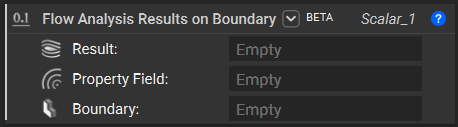
Specify the Result you want to evaluate (this is simply the Flow Analysis block) and the Boundary of interest. Note this boundary must reference the same virtual domain as the flow analysis simulation model.
To define the Property Field to evaluate, open the flow analysis properties and expand the property (velocity or pressure) of interest. In the list elements of keys, you will see the descriptions of each key. Then, expand the values, and drag the associated property chip from its list elements to the Property Field input.
