
List Errors
When working with lists, it is important to understand the key errors that could occur, including invalid input errors and lists within lists, described below.
Invalid Input Error
If you get an ‘invalid input error’, it may be because you are trying to input a list into a singular type input. nTop doesn’t allow this, which would cause the block input not to be accepted.
There are several options on how to get rid of a List:
1. Use a Block to get rid of the List by joining bodies together
- If your list contains meshes, use Merge Meshes
- If your list contains implicit bodies, use Boolean Union
- If your list contains CAD faces, use Stitch Adjacent CAD Faces (only works if Adjacent). If you use Stitch CAD Surface Bodies, you may end up with a List of 1.
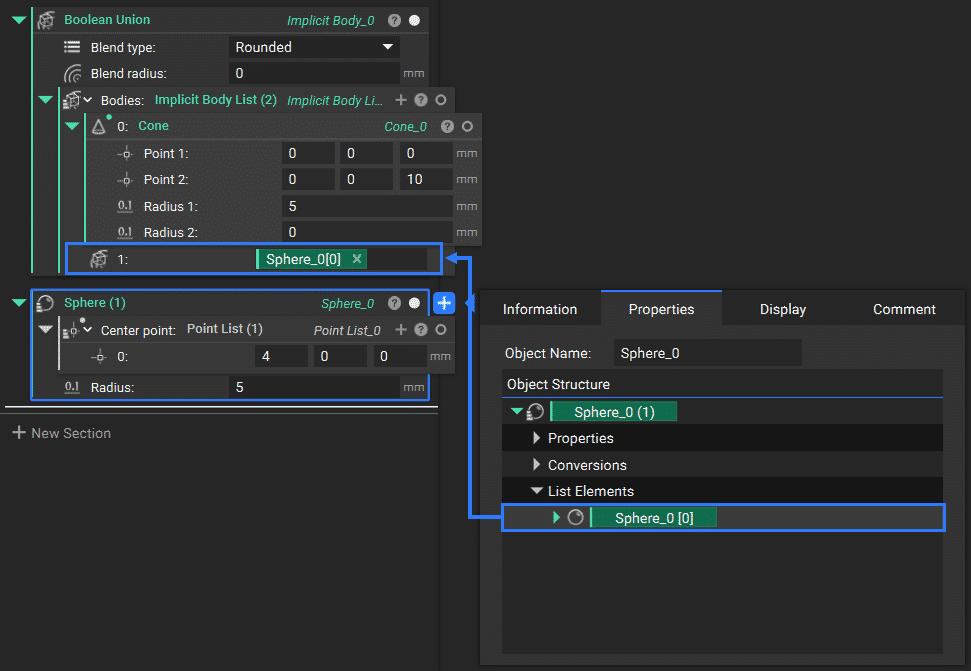
2. Open up the properties of the list block and select the chip at the bottom, of the same type, with [0] behind its name. Drag this chip into the notebook or directly into an input.

Lists in Lists – Inputting a list block within another list block
A list block cannot be input into another list block.
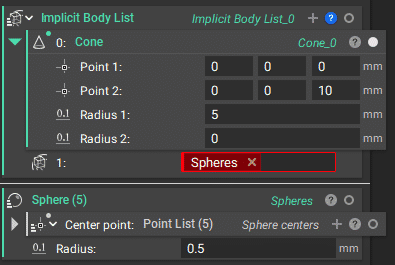
If you want to input a list into a block that doesn’t accept lists, you can create a custom block to run the list instead. This works because the inputs of a notebook are in variables, and variables cannot process lists.
However, once you use it as a CB, it’s a block like any other and, therefore, can process lists. This is not equivalent to putting the list into the input, but rather running the custom block workflow multiple times, once for each element in the list.
Another way to solve this problem is to use Concatenate Lists to combine the two lists.
Lists of One (1)
You may encounter a situation where you try to add one part to a block, and it won’t let you.
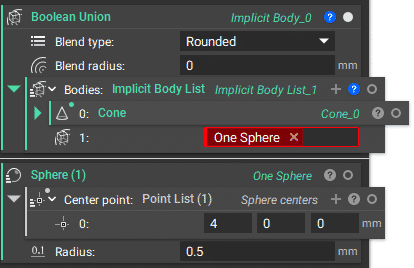
This is because the input you are trying to add looks like “Block Name (1)“. Somewhere, a “list of one” was created. Lists of one are sometimes unintentionally created by the user, or during CAD/Part importing. They can be converted to singular entities by either dragging the entity out of the Properties tab of the Block Details or by using the List Element block.
In many cases, it may be useful to make changes to listed blocks in order to rearrange the order of lists through sorting, and remove certain items from a list through filtering as discussed in the previous lesson.