
Creating a List
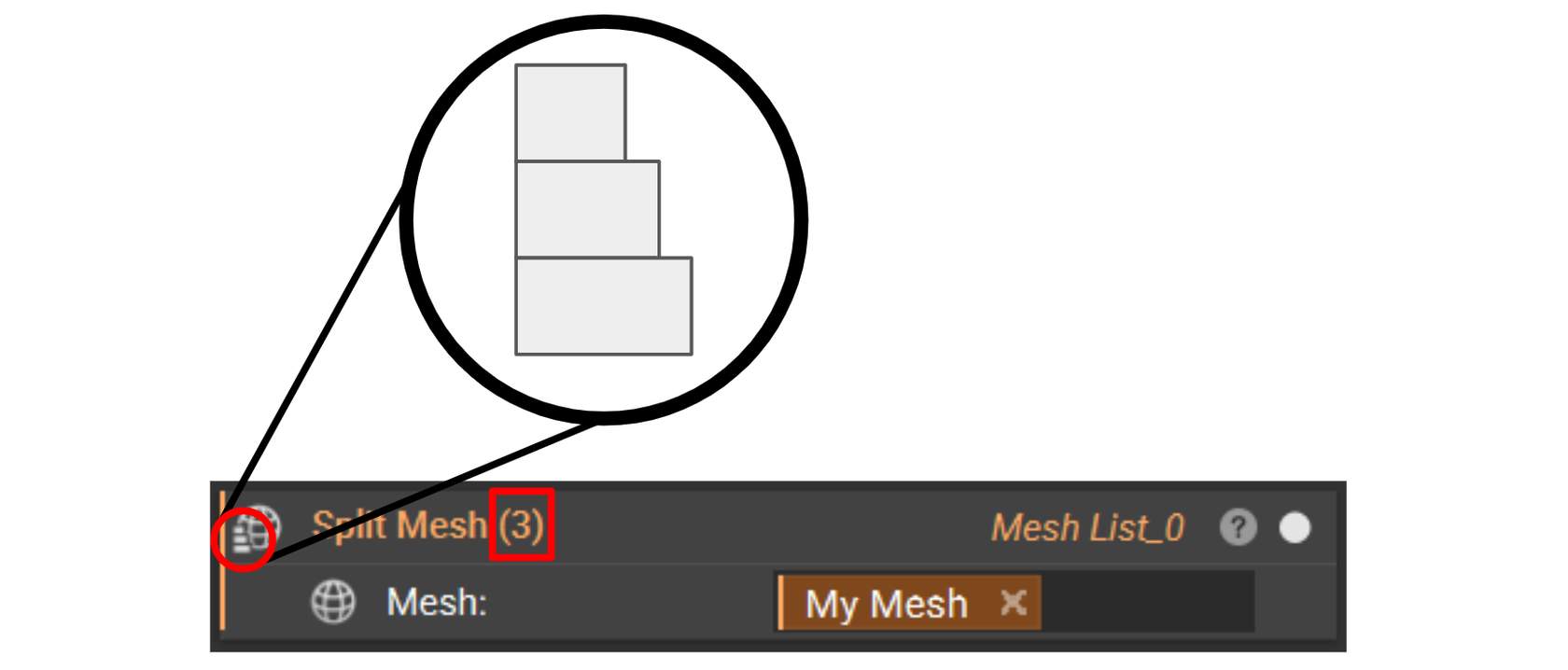
To create a list of any type, type ‘list’ into the search bar; along with the block type you would like to create. Lists are denoted in nTop by three small rectangles of increasing width in the bottom left corner of the data type icon. You can see the list size in parentheses next to the block type.
Not all lists are created from the search bar, some are made unintentionally or automatically with certain blocks, which we will go into further detail in the List Errors lesson. Some blocks turn a singular entity into a list, and some merge lists together.
Adding or Removing an Item in a List
There are two methods to add blocks to a list:
- Drag a new block into a List block. Remember that all entities in a list must have the same block type (i.e. they must have the same icon in the top left corner of the block).
- Select the ‘+’ to add more inputs. If you add too many, use the ‘-‘ on the left of the input to remove them.

The order of list entities can be changed by dragging list entities around within the List block.
Auto-Populated Lists
Some blocks use list inputs and combine them into a singular entity. An example of this is the Boolean Union block, which takes in a list of bodies and generates a single unioned body. Blocks like this are auto-populated with an empty list, which is useful for quickly dragging bodies inside to complete the operation.
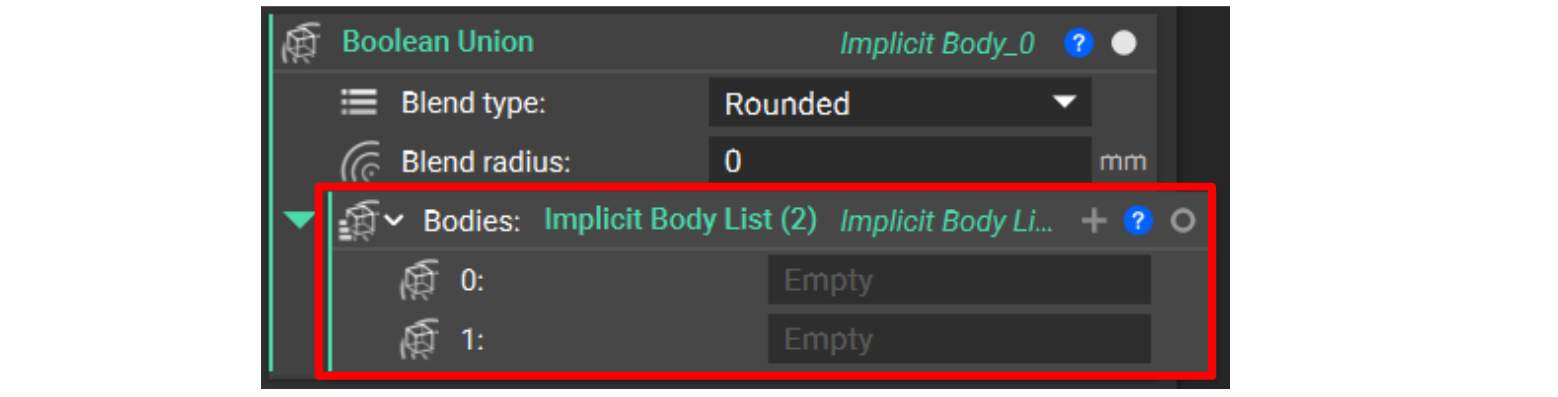
Auto-generated Implicit Body List in the Bodies input.
Sometimes, a user already has a list prepared that they would like to perform a Boolean Union operation on. In this case, the auto-populated list must be deleted and replaced by the desired list.

Changing Variable Type to a List
You can also create a list from a variable by clicking on the icon and choosing a list from the options. In the example below, we change the variable type from Sphere to Implicit Body List.
