
Importing a Custom Block
Once you have created a custom block, the next step is to implement it in another workflow in a separate nTop file. There are a few ways to import a CB into your notebook:
- Importing the CB by going to Hamburger icon → File → Import or use the shortcut Ctrl+I and selecting the corresponding nTop file
- Saving the CB in “My Blocks Folder”
- Select the Show Side Bar icon options and then in the Imports tab header, click “Import Block” to select the corresponding nTop file.
Some of these import methods are described in further detail below.
My Blocks Folder
If you use a CB frequently, we recommend saving it in your “My blocks folder” as shown below. The default folder is in the nTop folder under “Myblocks”. If you want to share the CBs across your team, you can change the location of your “My blocks folder” to a shared folder by going to the Hamburger icon → Settings → General as shown below.
Once you save the block in this folder, it is automatically imported into the notebook, and all you need to do to add it to your workflow is search for the block in the search bar.

Importing a Custom Block
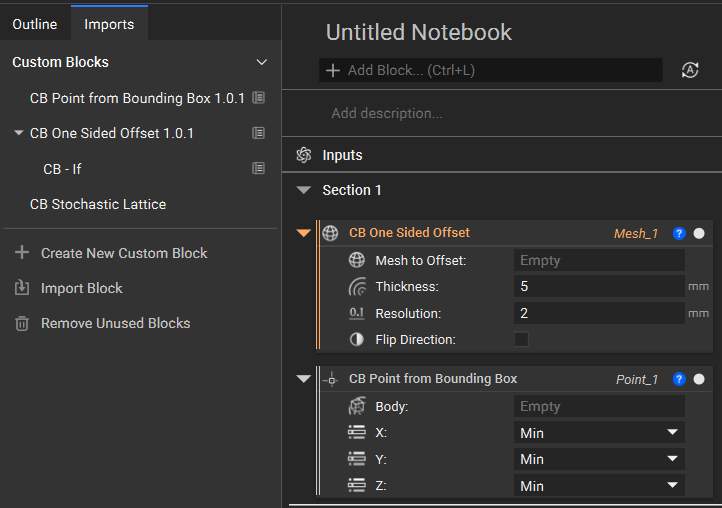
The last option to import a CB is to select the View Imported Blocks icon in the notebook header and to click on “Import Block” to select the corresponding nTop file. Once you have imported a CB into your file, the symbol will update to reflect the total number of imported blocks in your file. If you click on that icon again, you will see the names of the CBs imported and a symbol shown below indicates that it is used in the notebook.
Using the Imported Custom Block
Once you import the CB, you can add it to the notebook by searching for its name in the search bar.
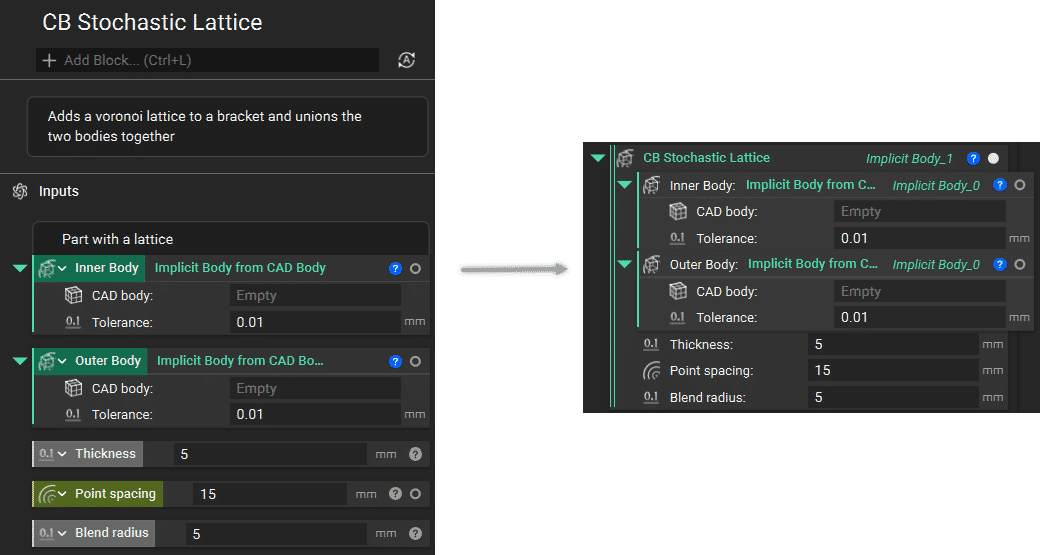
When imported, the CB will appear as a single block in the body of the notebook. If you change the nTop file containing the unpacked CB, you’ll need to re-import the CB to see the changes take effect.
Notice that the same inputs in the CB are the input parameters for the CB.
Note: If you have not properly defined the CB’s inputs or outputs, you may see the error below.

Deleting Unused Blocks
We recommend deleting unused custom blocks to decrease file size, improve opening speed, and maintain organization.
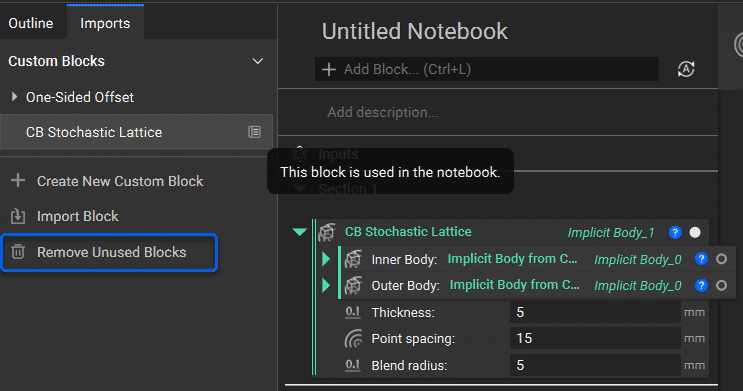
You can only delete imported blocks that are unused in the notebook. You can also click the Remove Unused Blocks to remove all the unused imported CBs. Blocks appearing at least once in a workflow are marked with a notebook icon in the Imports panel, like CB Stochastic Lattice in the example below.
Tip:
You can use the Imports viewing pane to manage and modify CBs used in your workflow. Visit this Help Center article to see how you can modify the CBs from within your notebook.