
Importing and Converting Parts to Implicits
The typical first steps of building a workflow are importing a part, then converting it into an implicit body to be able to work with it. Blocks for importing and conversion can be found in the Utilities tab.

Importing Parts
There are three main methods for importing parts, data, and more. See the full list of files types that can be imported into and exported out of nTop here.
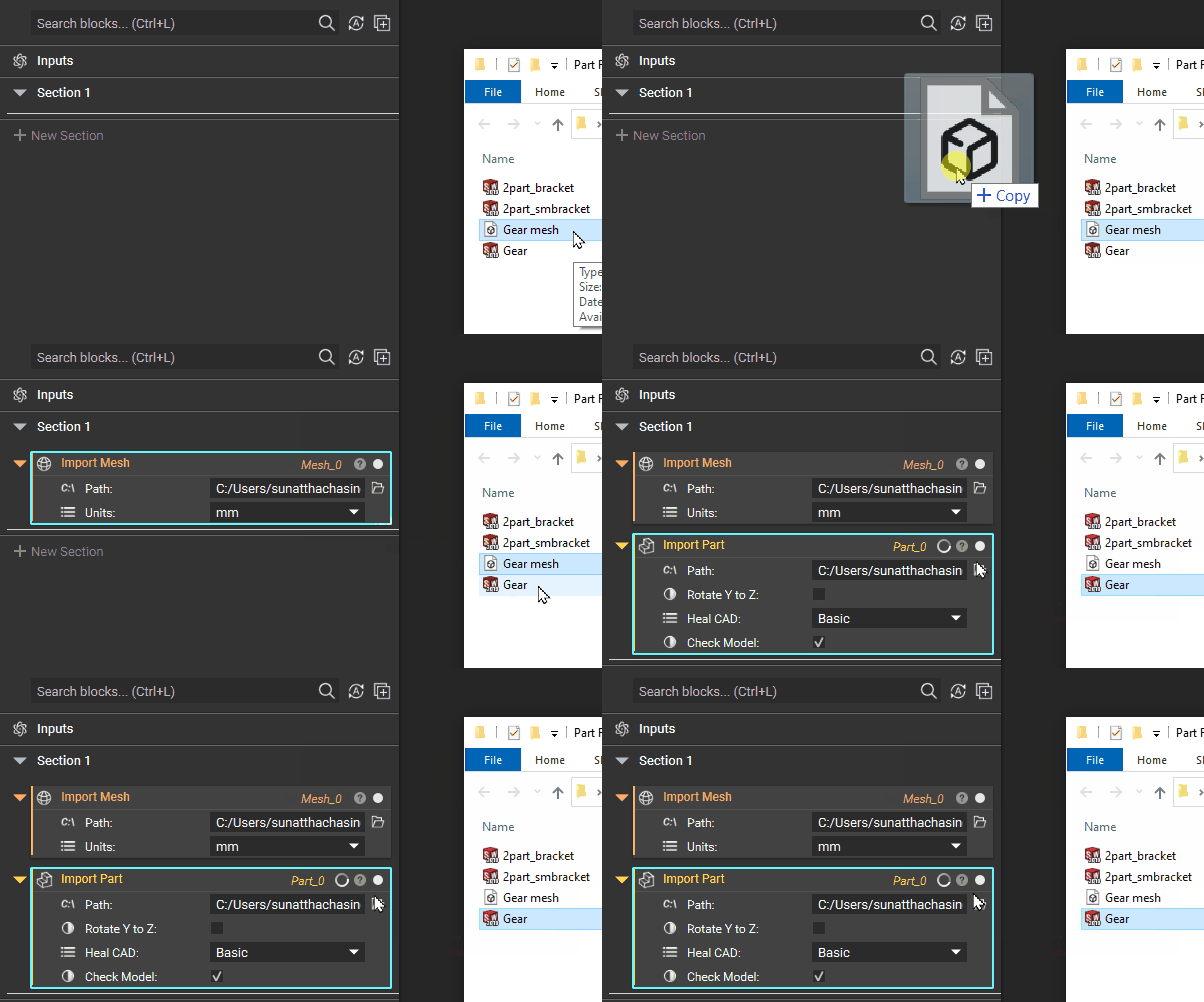
Method 1: Drag and Drop
Open the folder on your computer that contains the part file. Drag and drop it into nTop. This will import your part and automatically create a block.
Method 2: File > Import
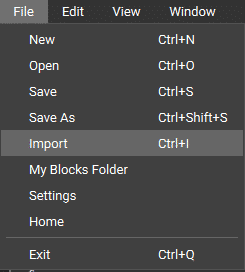
Go up to File > Import (or use hot-key Ctrl + I) to open the Import Window. From there, choose your file and it will import your part.
Method 3: Import Block
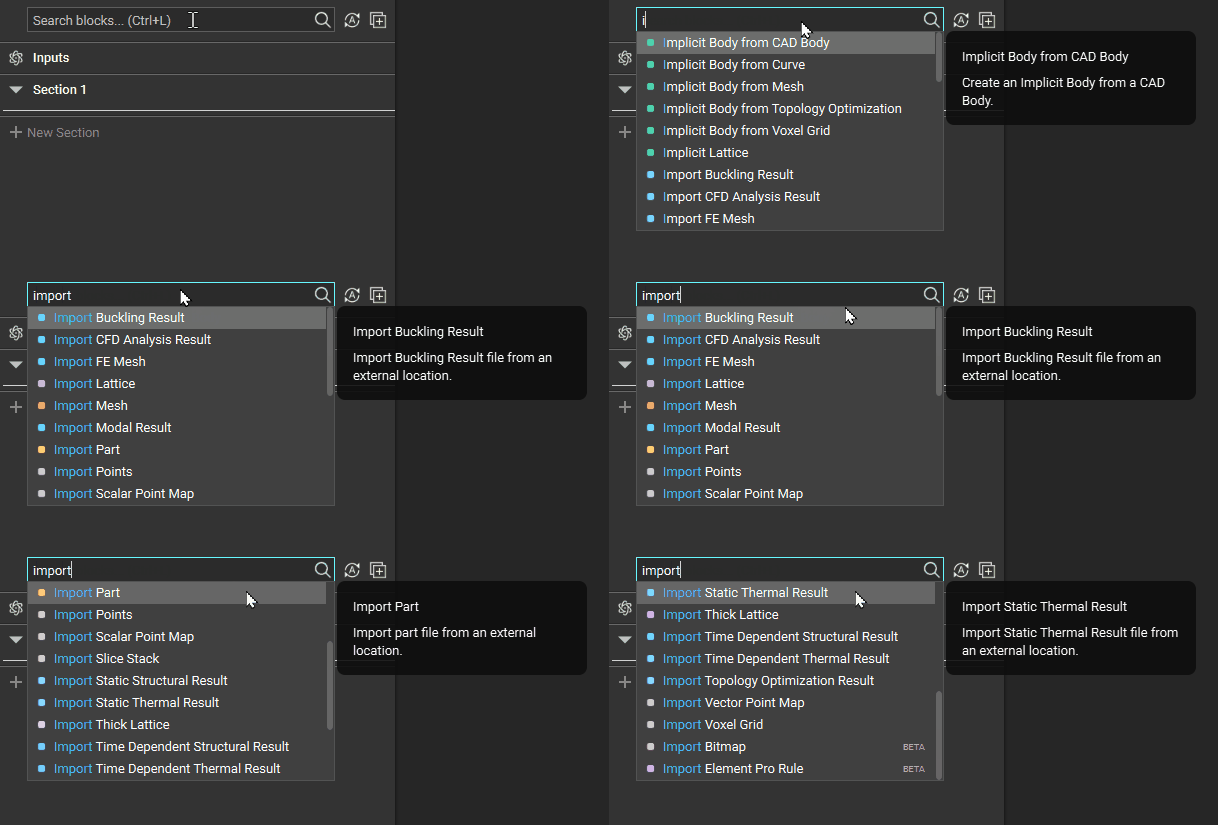
Use the search bar and type in ‘Import’. All of the import options will pop up, allowing you to choose the block you need. These blocks can also be found in the Utilities tab in the Ribbon.
Tip:
If the part is not visible after importing, it may be because it is not at the location of the viewport. Use the hotkey ‘Z’ to bring the part into view.
Converting to an Implicit Body
Depending on your imported file type, different blocks are available for converting parts to an implicit body. Use the search bar to explore the possible block options. You can find these conversion blocks in the Utilities tab.
