Importing and Exporting Simulation Data
Depending on your process, you may want to export a portion of your workflow to an external software to complete the simulation.
Note that nTop can create tetrahedral volume meshes, but not hexahedral or other types of elements used in more complex simulation techniques. If non-tetrahedral elements are needed, we recommend exporting a surface mesh from nTop, and creating your desired mesh in external software.
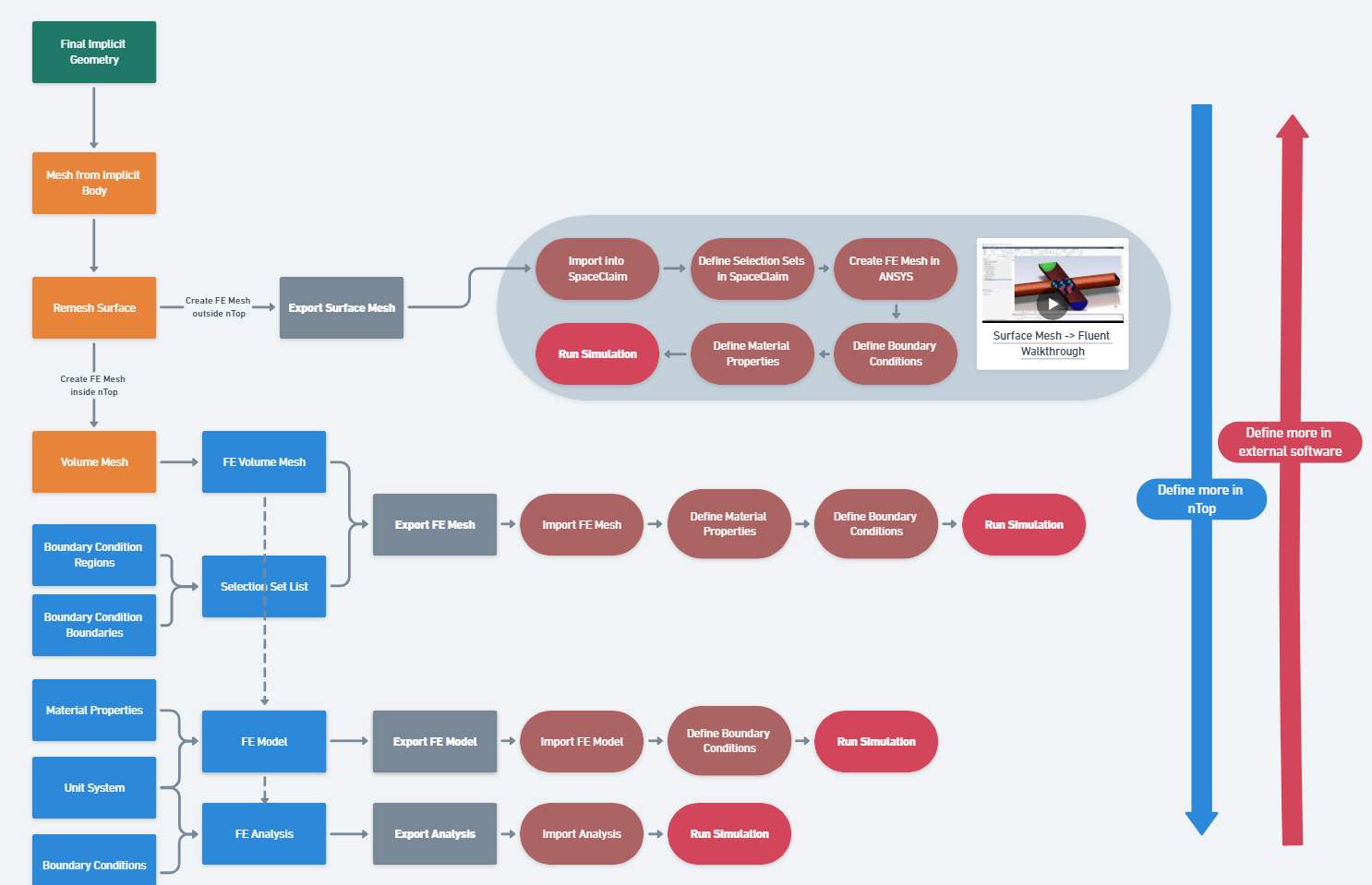
Overall Process for Exporting areas of a Simulation out of nTop
Import and Export FE Meshes
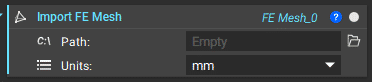
You can use the Export FE Mesh block for exporting your FE Mesh to external software and our Import FE Mesh block to import an external mesh. Named Selection Sets of nodes, edges, cells, etc. can be defined in nTop and preserved through exporting the FE Mesh file from nTop into FEA software. The named selections can be assigned to Boundary Conditions in the simulation software. Not all selection types are compatible with all file formats and software.
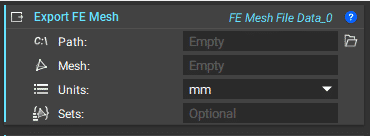
FE Mesh Types Available for Import
| File Type | File Extension | Notes |
| Abaqus | *.inp | The format supports node, element, face, and edge sets |
| ANSYS Mechanical | *.cdb | Format only supports node and element sets |
| ANSYS Fluent | *.msh | Only mesh export is currently supported |
| LS-DYNA | *.k | – |
| Nastran | *.bdf, *.dat and .*nas | – |
| Patran | *.pat | – |
| CGNS CFD Data File | *.cgns | – |
| Universal File Format | .unv | – |
FE Mesh Types Available for Export
| File Type | Abaqus (.inp) |
ANSYS (.cdb) |
Nastran (.bdf) |
LS-DYNA (.k) |
Universal (.unv) |
Patran (.pat) |
Fluent (.msh) |
| FE Volume Mesh | X | X | X | X | X | X | X |
| FE Volume Mesh + Node Set | X | X | X | X | |||
| FE Volume Mesh + Edge Set | |||||||
| FE Volume Mesh + Face Set | X | ||||||
| FE Volume Mesh + Element Set | X | X | X | X | X |
Note: If running CFD, we can now export the CFD boundaries and FE mesh using the CFD Boundary on FE Mesh and Export FE Mesh to CFD blocks found in the Beta tab.
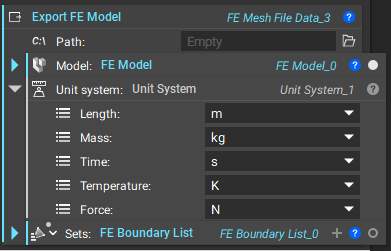
Export FE Model
To export the FE Model for external simulation software, input the FE Model, Unit System and FE Boundary List to the Export FE Model block.
Export File Types
| Abaqus | *.inp |
| ANSYS Mechanical | *.cdb |
| ANSYS Fluent | *.msh |
| LS-DYNA | *.k |
| Nastran | *.bdf, *.dat and .*nas |
| Patran | *.pat |
| Universal File Format | .unv |
Import and Export FE Results
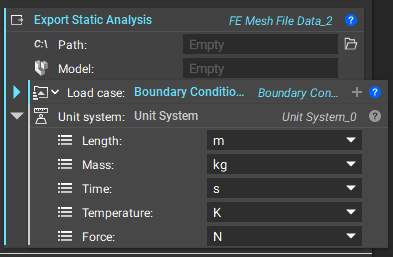
To run a simulation outside of nTop, you can export the FE Analysis which requires the FE Model, the Boundary conditions, and the unit system.
| Abaqus | *.inp |
| ANSYS Mechanical | *.cdb |
| ANSYS Fluent | *.msh |
| LS-DYNA | *.k |
| Nastran | *.bdf, *.dat and .*nas |
| Patran | *.pat |
| Universal File Format | .unv |
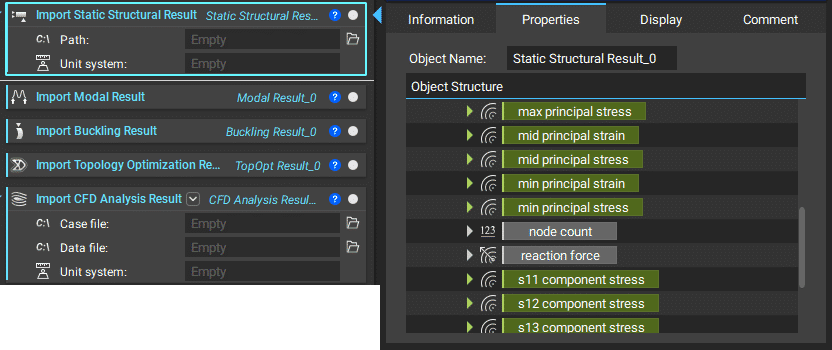
As shown below, when you import analysis from an external simulation tool, the same properties are shown as in the native simulation blocks. You can use these properties to drive your design with the ramp block discussed in our Intro to Fields and Data-Driven Design Course. You can also complete the post-processing of a topology optimization that is imported into the Notebook.
FE Results Available for Import
| FE Results Available for Import | ||
|---|---|---|
| Result Type | File Type | File Extension |
| Static Structural Result, Modal Result, Buckling Result, and Time-Dependent Structural Result | Ansys Structural Result | *.rst |
| NASTRAN Output File | *.op2 | |
| Static Thermal Result, and Time-Dependent Thermal Result | Ansys Thermal Result | *.rth |
| NASTRAN Output File | *.op2 | |
| CFD Analysis Results | Fluent Case File | *.cas and *.cas.gz |
| Fluent Data File | *.dat and *.dat.gz | |
| CGNS CFD Data File | NASTRAN Output File | *.op2 |
Importing a Point Map
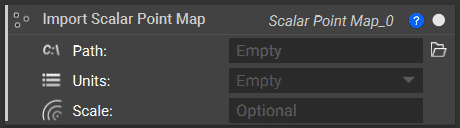
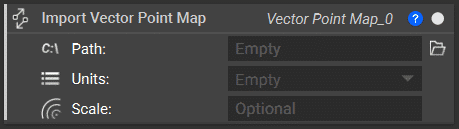
If you are working with simulation files that are not supported in our export option, you can still bring in the results to nTop to drive designs using the Import Scalar Point Map or Import Vector Point Map block. If you are importing a Scalar Point Map, ensure your format is: X, Y, Z, S where S is the desired value at each point. If you are importing a Vector Point Map, ensure your format is: X, Y, Z, U, V, W where The U, V, W represent the vector at each point. These blocks use CSV files for creating the point maps.