
Running Topology Optimization
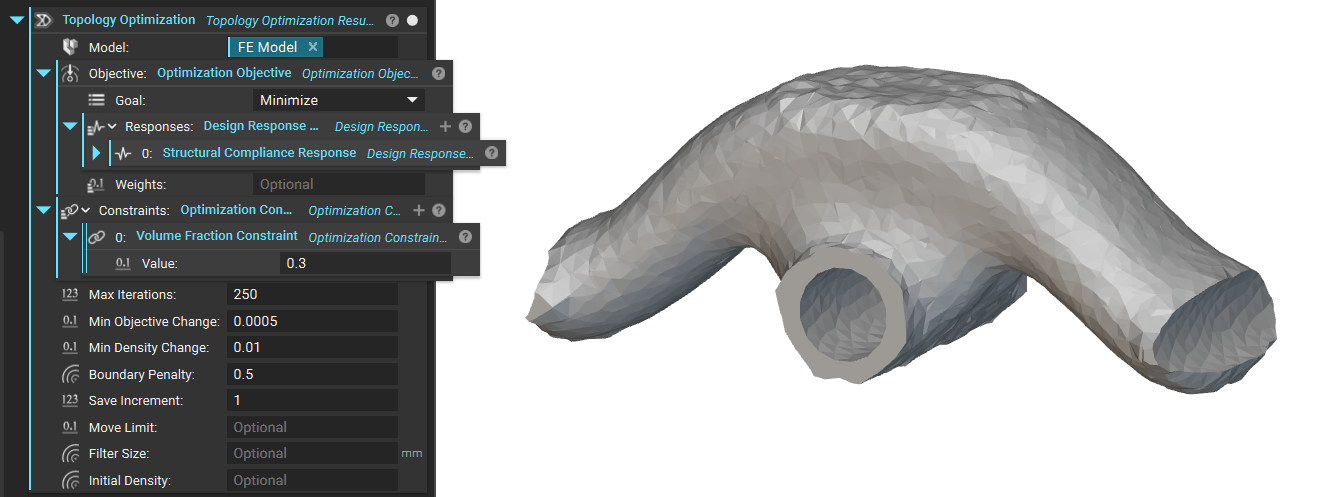
To run a TopOpt, add a Topology Optimization block and:
- Insert the FE Model
- Insert the Optimization Objective
- Insert the Optimization Constraints
The rest of the inputs can be left as default for this example. More information on these settings can be found in the block’s information panel and the TopOpt Properties lesson earlier in this course. After completion of TopOpt processing, a window pops up in the Viewport with several options for visualizing the results.
The Topology Optimization process assigns a value between 0 and 1 to all mesh elements. Higher values are assigned to elements that most effectively contribute to the optimization objective, referred to as the top opt density. As mentioned, this can be accessed as a density property chip in the Topology Optimization block.
For example, an element in the bottom corner of the design space, far away from the applied load, is given a density value close to 0 because placing material here does not contribute to the goal of minimizing structural compliance. On the other hand, elements close to the loaded center hole are given a density value close to 1 because having material there is necessary to support the load.
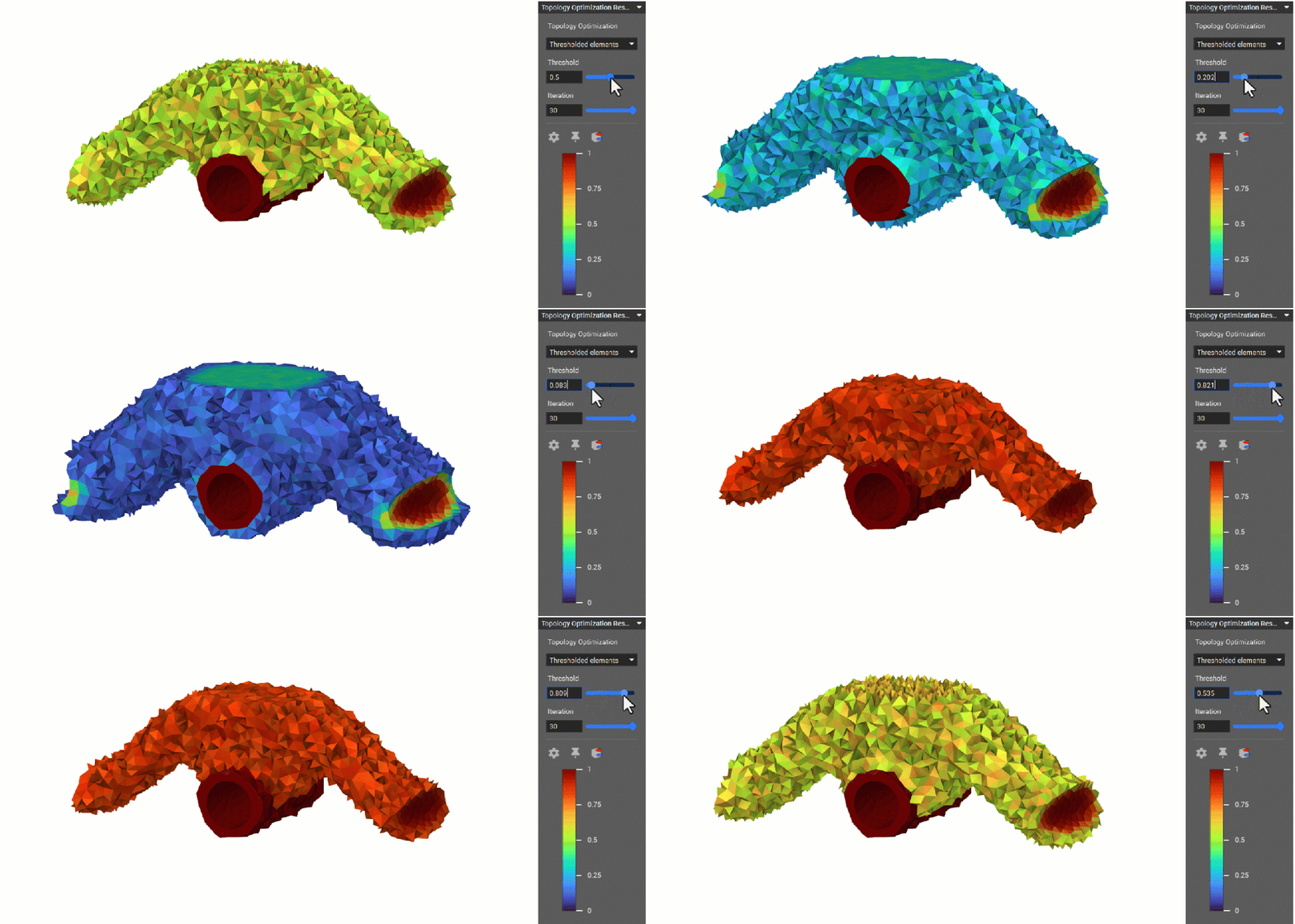
Viewing Results
The Thresholded elements option in the Topology Optimization HUD lets you view density values assigned to all elements in the design space. Use the Threshold slider only to view elements with a value higher than the specified threshold.
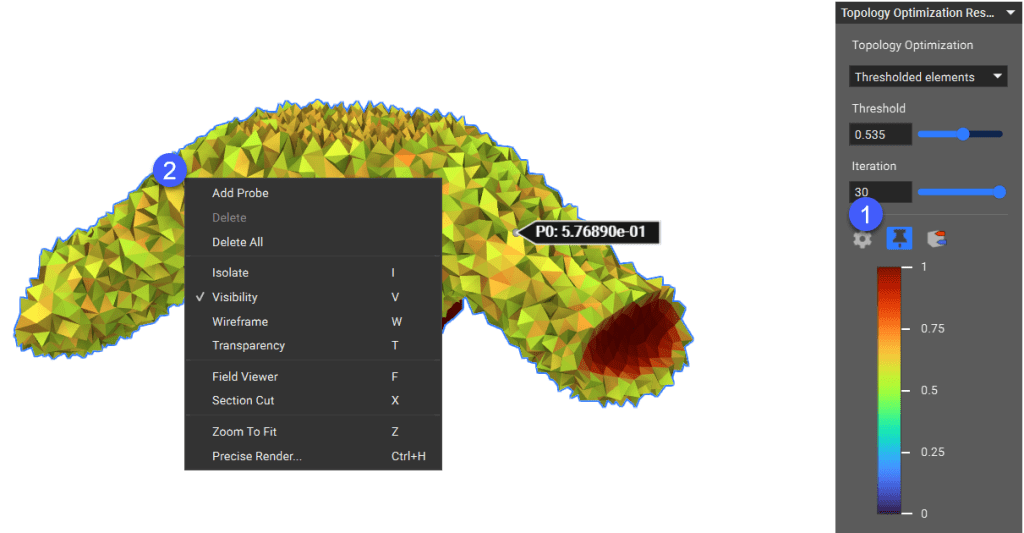
After the Topology Optimization is complete, you can also probe the density values of elements. The desired locations can be identified by moving the probe across the threshold plots and pinning them through a right-click selection menu. This feature can determine the best combination of the threshold parameter and iteration to output the final optimized part.
The Iso-contour view shows a single surface interpolated from all elements with TopOpt density values close to the specified threshold.
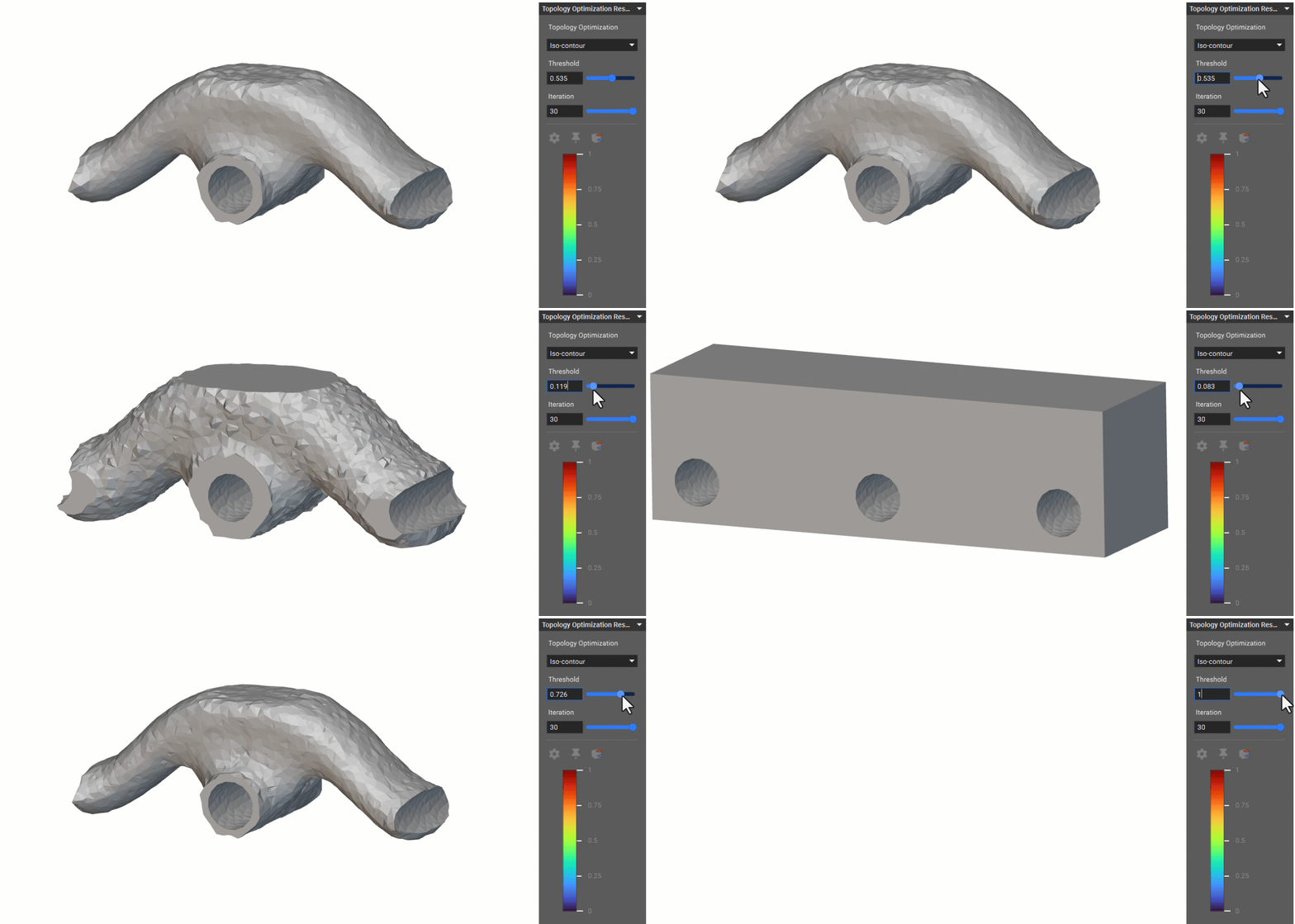
The Iteration slider allows you to see the evolution of the TopOpt throughout the optimization iterations in both view modes.