
Creating and Using a Ramp from Fields
Once you convert a point map to a field in nTop, you can use that field to manipulate implicit geometry. The most common way to do this is by using a Ramp block.
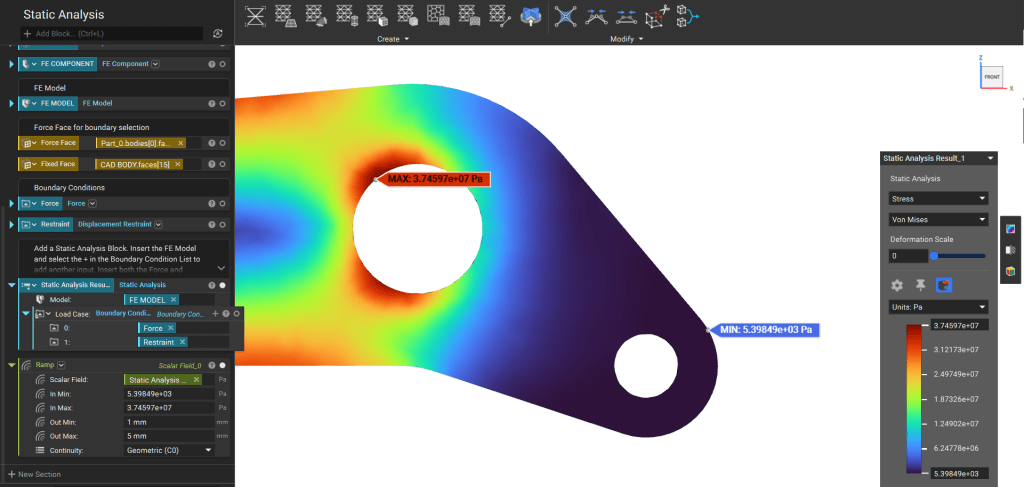
Review the Ramp Block lesson in the course 220: Intro to Field Driven Design to refresh your memory about how the Ramp block works. Let’s start by looking at the steps to take with a scalar field, such as this von mises stress field from Static Analysis.
- Add a Ramp block.
- Input the von mises stress field as the Scalar Field input.
- Take a look at the Min and Max values from the HUD. Using these values as the range’s In Min and In Max is a great place to start.
- You can use the Min and Max blocks to calculate these values if you are using a field created from Point Map.
- Set the Out Min and the Out Max to correspond to the parameter to be varied. If varying thickness, for example, add appropriate units (‘mm,’ for instance) to these values.
- Set the Continuity to your desired option.
Depending on the field type. You can access their associated fields through the Properties in the Block Details in such cases. For example, the displacement field in Static Analysis will have scalar fields inside for each vector component.

These fields (Property chips) can be used in a Ramp block.
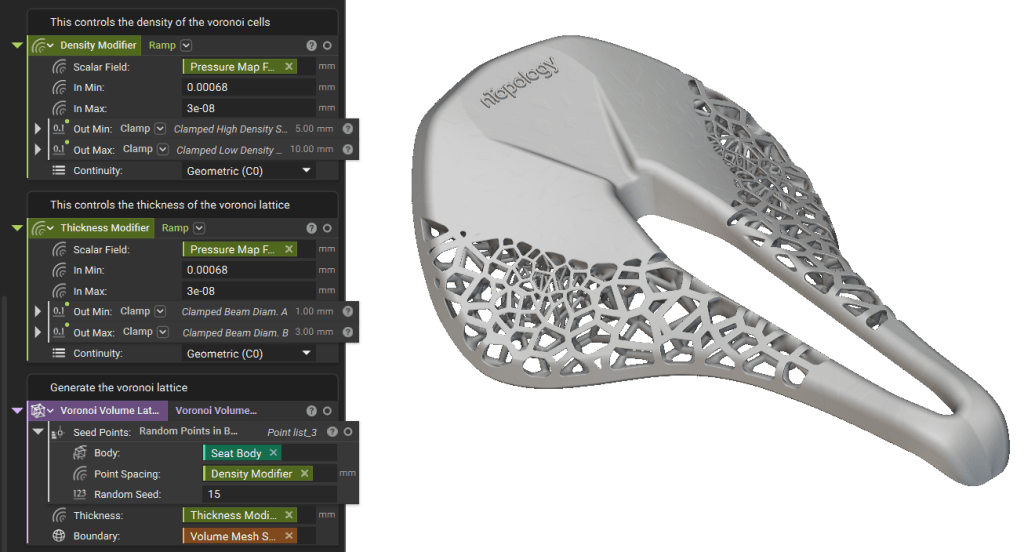
Once you’ve created a Ramp, you can control the geometry parameters as input that accepts scalar fields. The Bike Seat example uses two scalar fields to drive the Point Spacing and Thickness parameters.
Of course, field property chips can be used directly as well. This support article explains different ways in which you can use the Ramp block.