
Basic Import Operations
While modeling implicit bodies directly in nTop offers advantages for parameterizing design spaces, you can also work with imported implicit bodies as well as discrete geometry like CAD files and meshes. Use the Conversion blocks in the Exchange tab of the ribbon to convert imported discrete geometry into implicit bodies.
Working with CAD
nTop supports both multi-body parts and assemblies and treats CAD imports as collections of bodies; even if the import only contains a single body. Some operations require identifying the specific CAD body or face by creating a CAD body or face variable.
Extraction by Manual Selection on Screen
The quickest way to convert an imported CAD part into an implicit body is to extract directly from the part shown on the screen. Both the CAD Body and Face can be converted into implicit bodies as well as made into CAD Body or Face Variables.
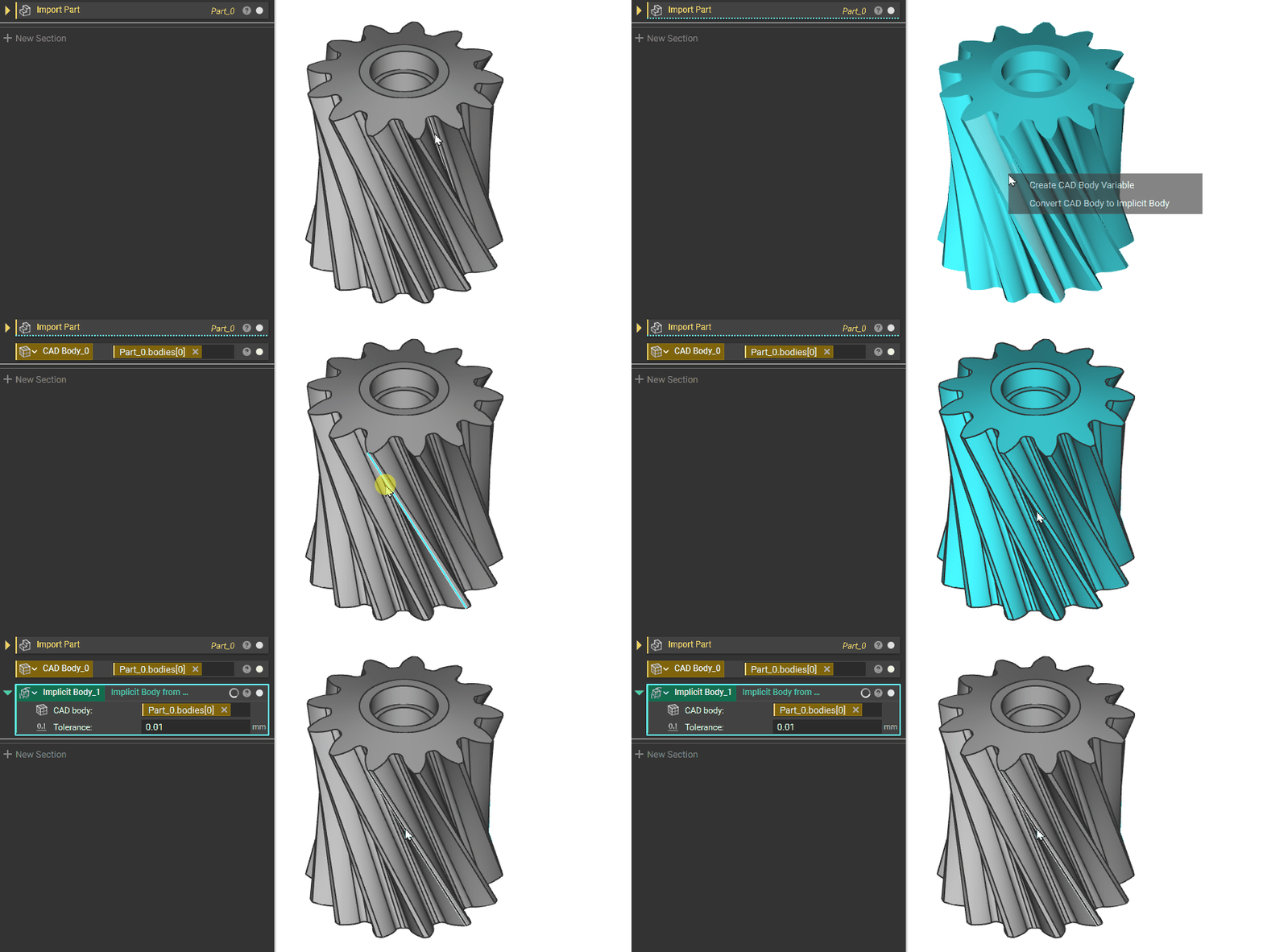
Double-Click to select the whole body, then right-click to either “Create CAD Body Variable” or “Convert CAD Body to Implicit Body”
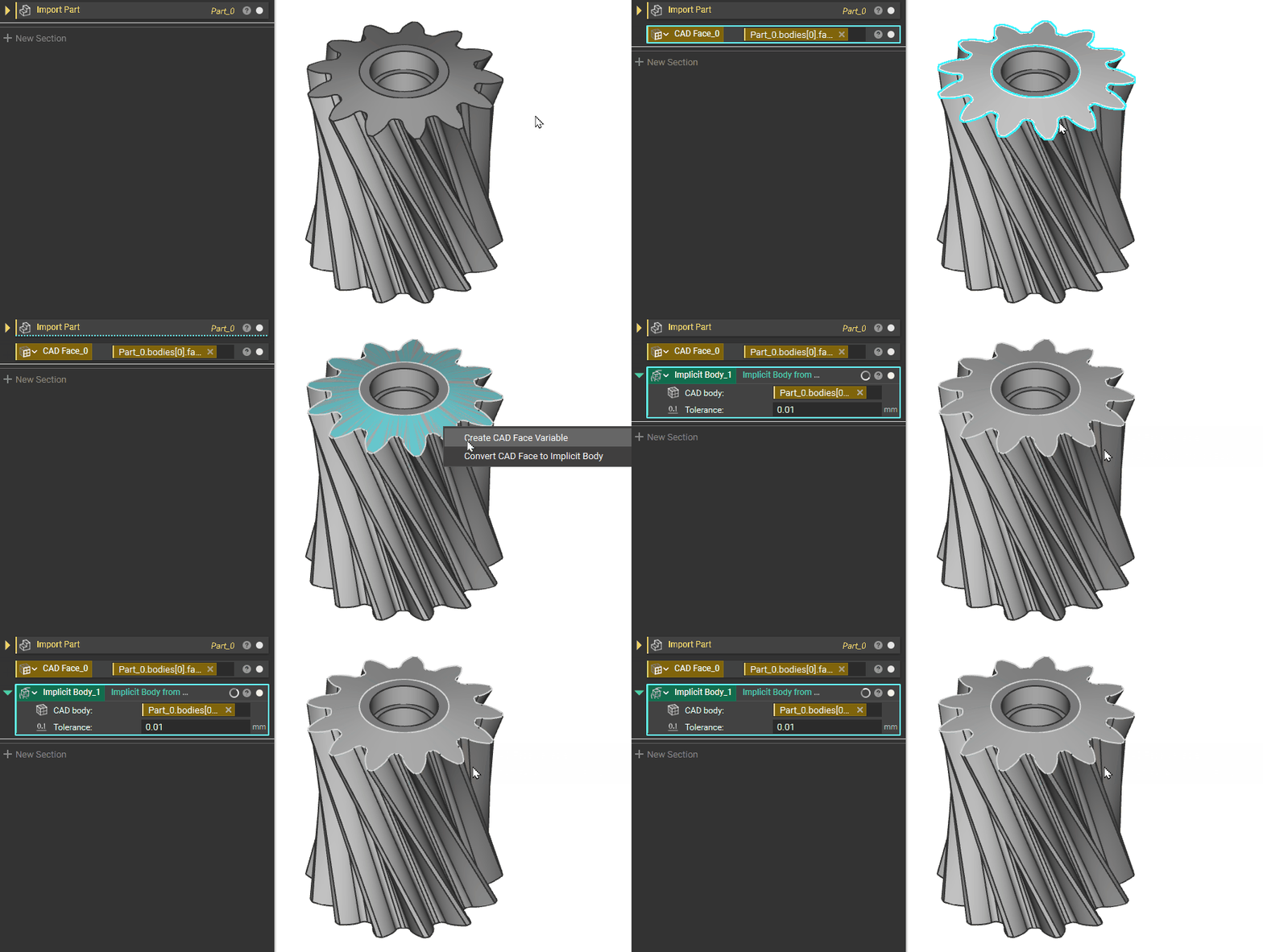
Single-Click to select a face, then right-click to either “Create CAD Face Variable” or “Convert CAD Face to Implicit Body”
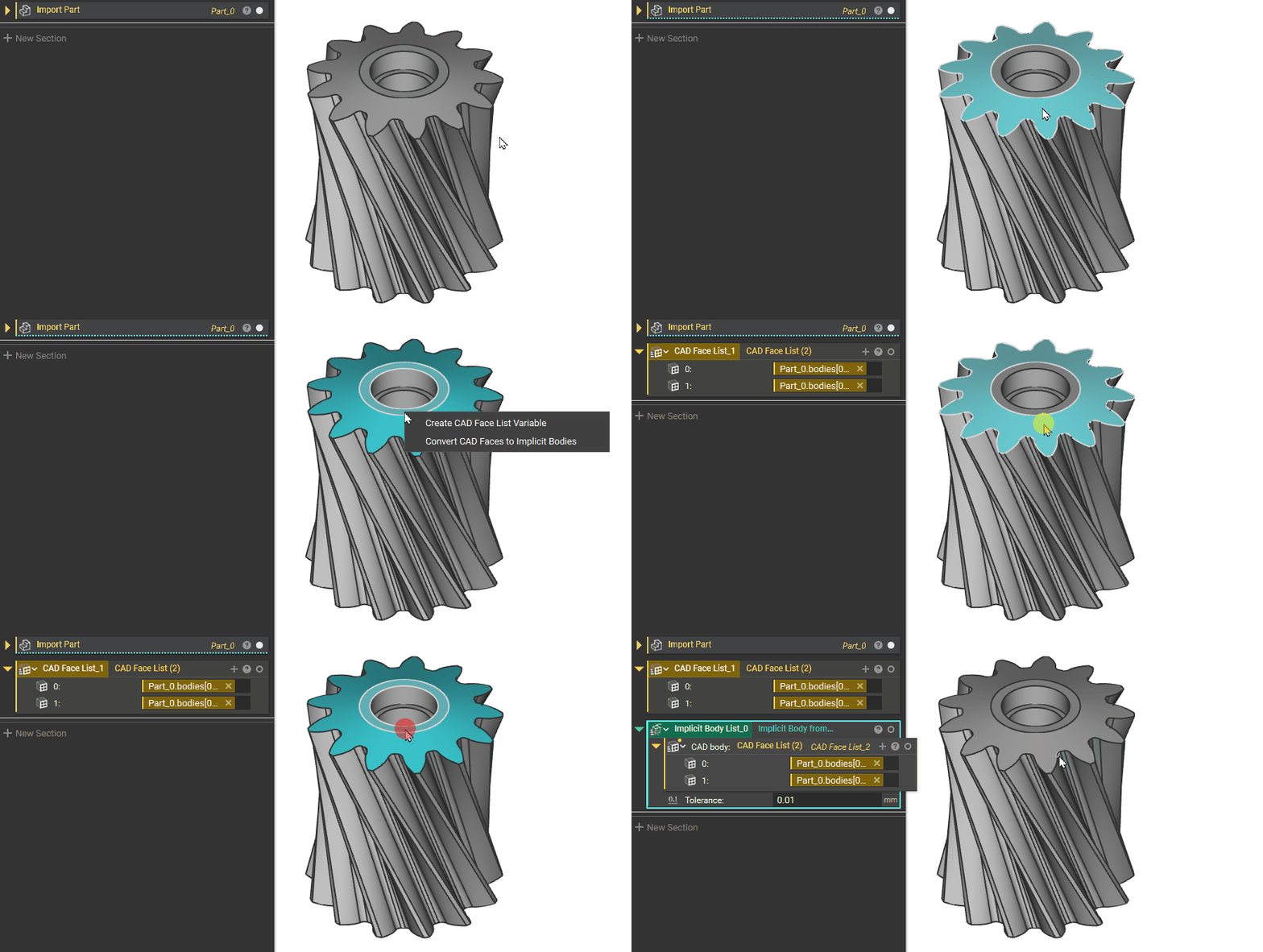
Hold Ctrl to select more than one body or face, then “Create CAD Body List Variable” or “Convert CAD Body to Implicit Bodies”. A List is created if more than one item is selected.
In this example, we choose 2 faces, so the block will have a (2) behind its name, with 2 being the size of the list.
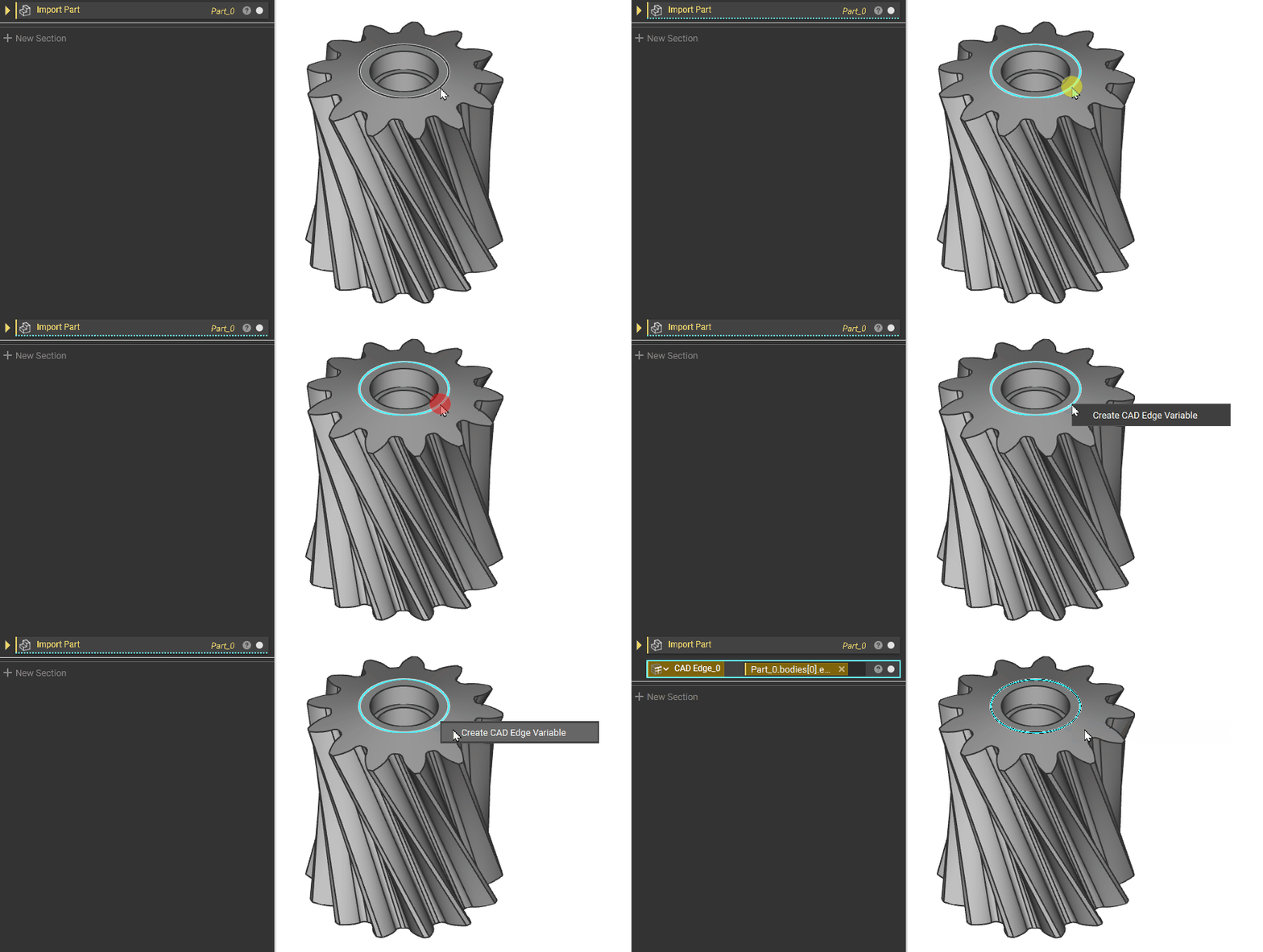
Edges or vertices can also be extracted the same way, but they can only be made into CAD Vertex or CAD Edge Variables and not implicit bodies.
Extraction by Properties
Open the Properties Panel of the Imported part. Expand the Bodies Properties until you reach the desired element. Drag it into the Notebook to create a block from it.
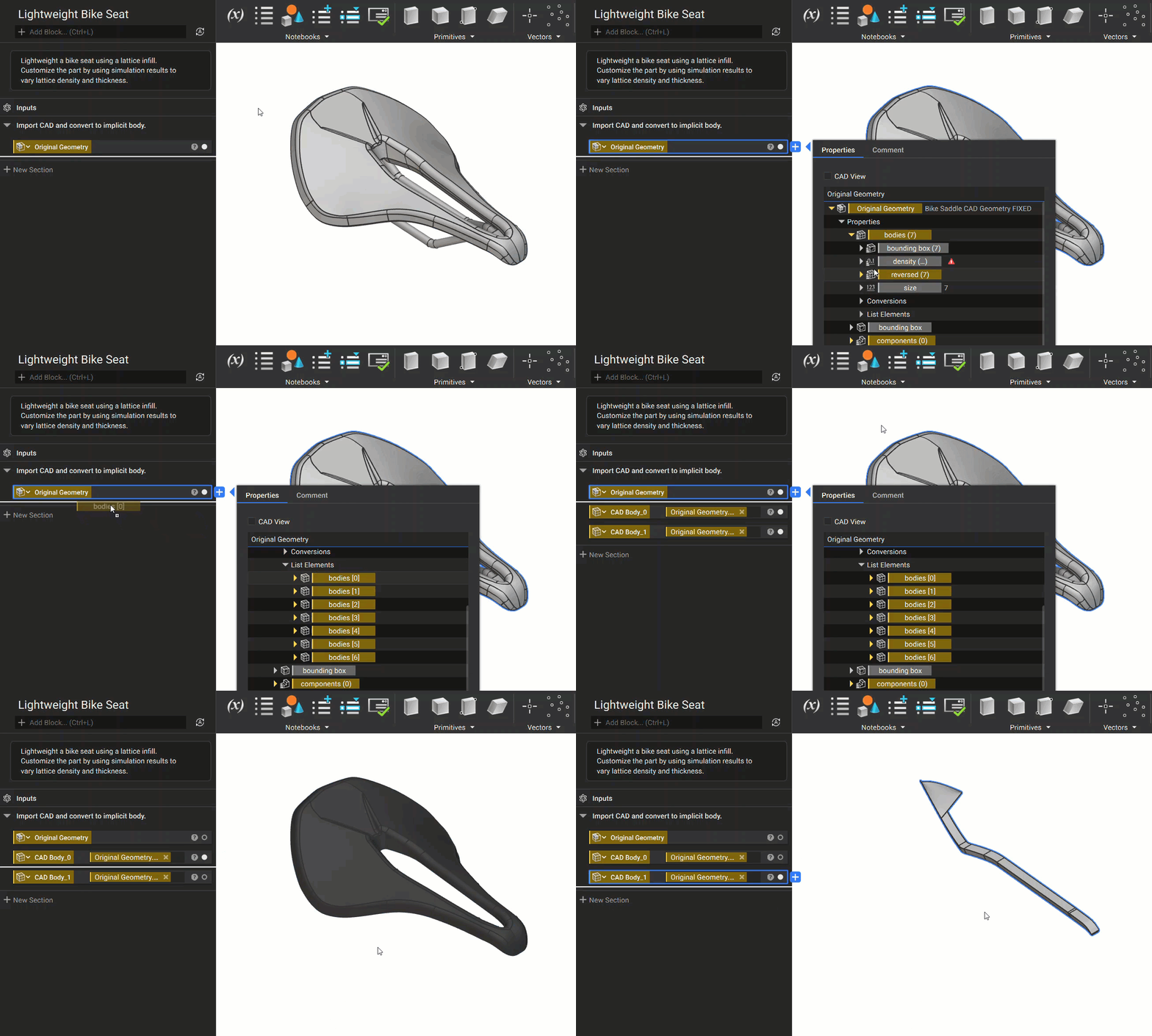
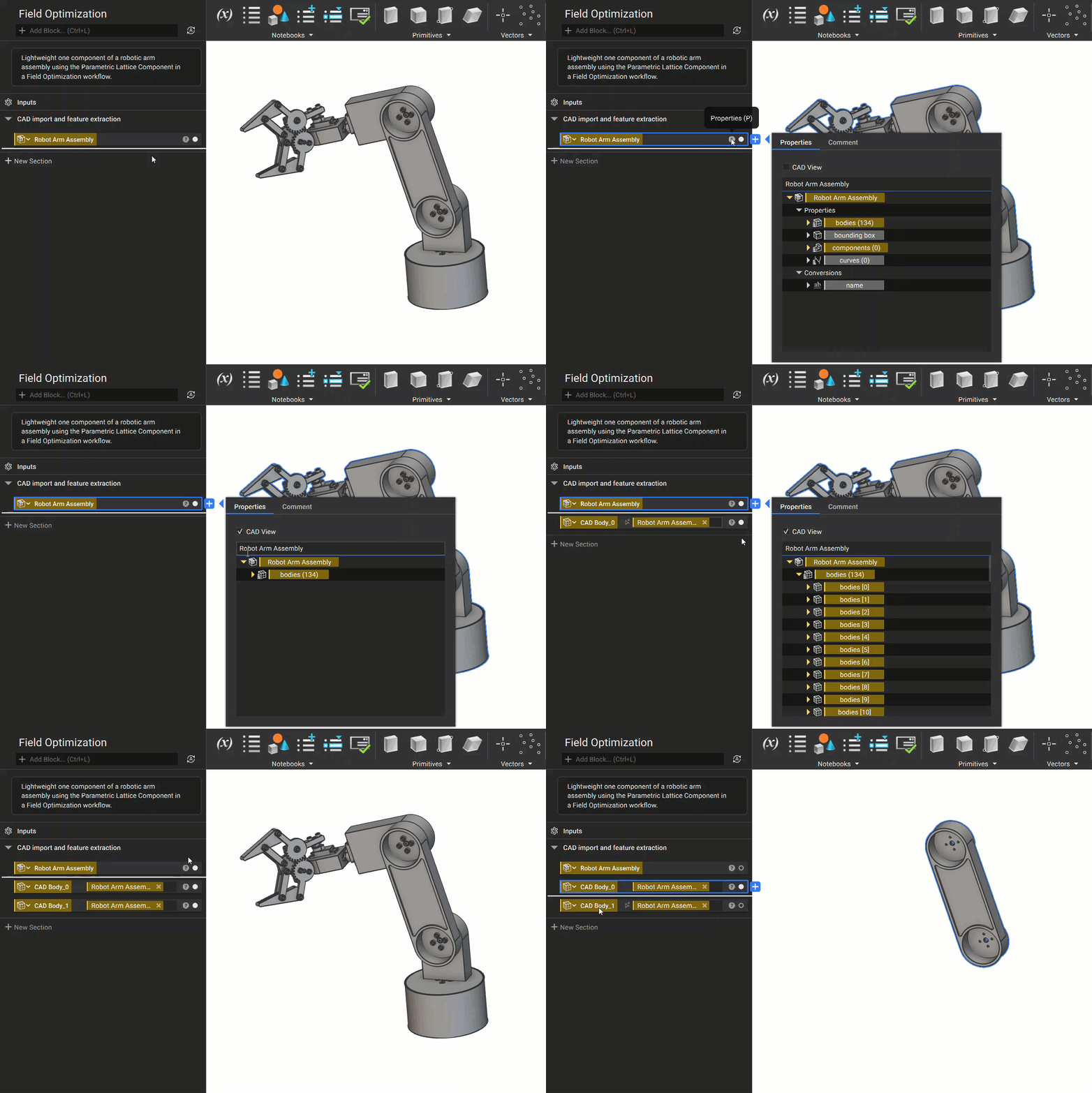
Extraction by Properties Using CAD View
When opening the properties panel of an imported CAD part or assembly, there are many property chips to choose from. To simplify extraction we added a CAD View filter, which hides all properties except for CAD bodies.
Extraction by CAD Blocks
In nTop 5.8, we released a series of new blocks that are designed to help users interact with CAD bodies more efficiently.
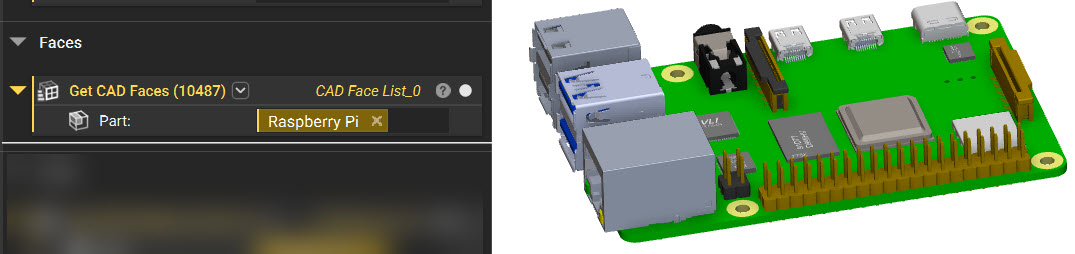
To extract CAD Faces:
Use the Get CAD Faces block:
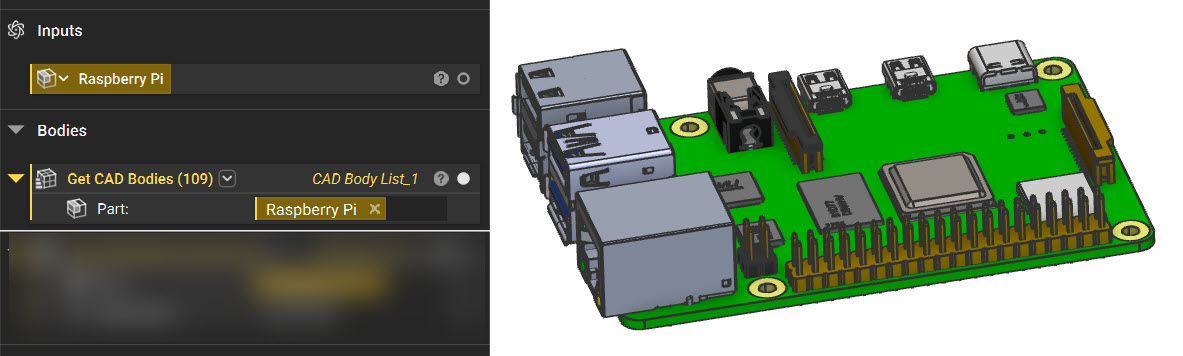
To extract CAD Bodies:
Use the Get CAD Bodies block:
You can also use the Get CAD Bodies by Name or Get CAD Faces by Name block to further refine your selections:
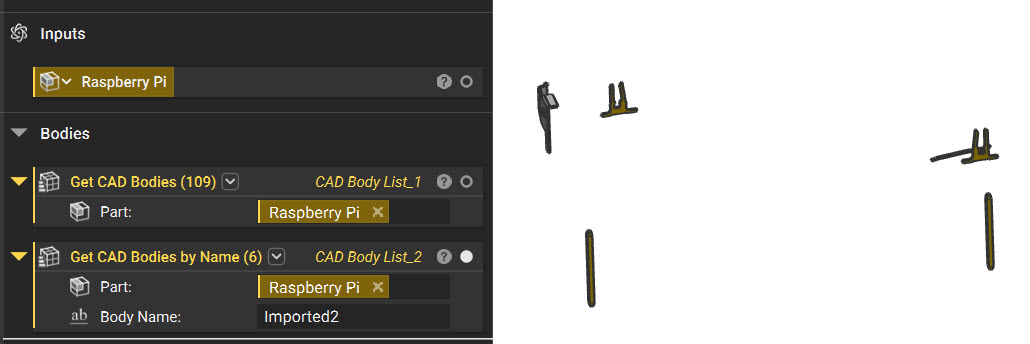
Extraction by Color Blocks
You can extract CAD Faces and CAD Bodies using our two color based blocks:
- Get CAD Faces by Color
- Get CAD Bodies by Color
In the gif below, the Color property chip is extracted from the face/body. We recommend this method as it directly links to color, as opposed to inputting the RGB values of an empty Color block.
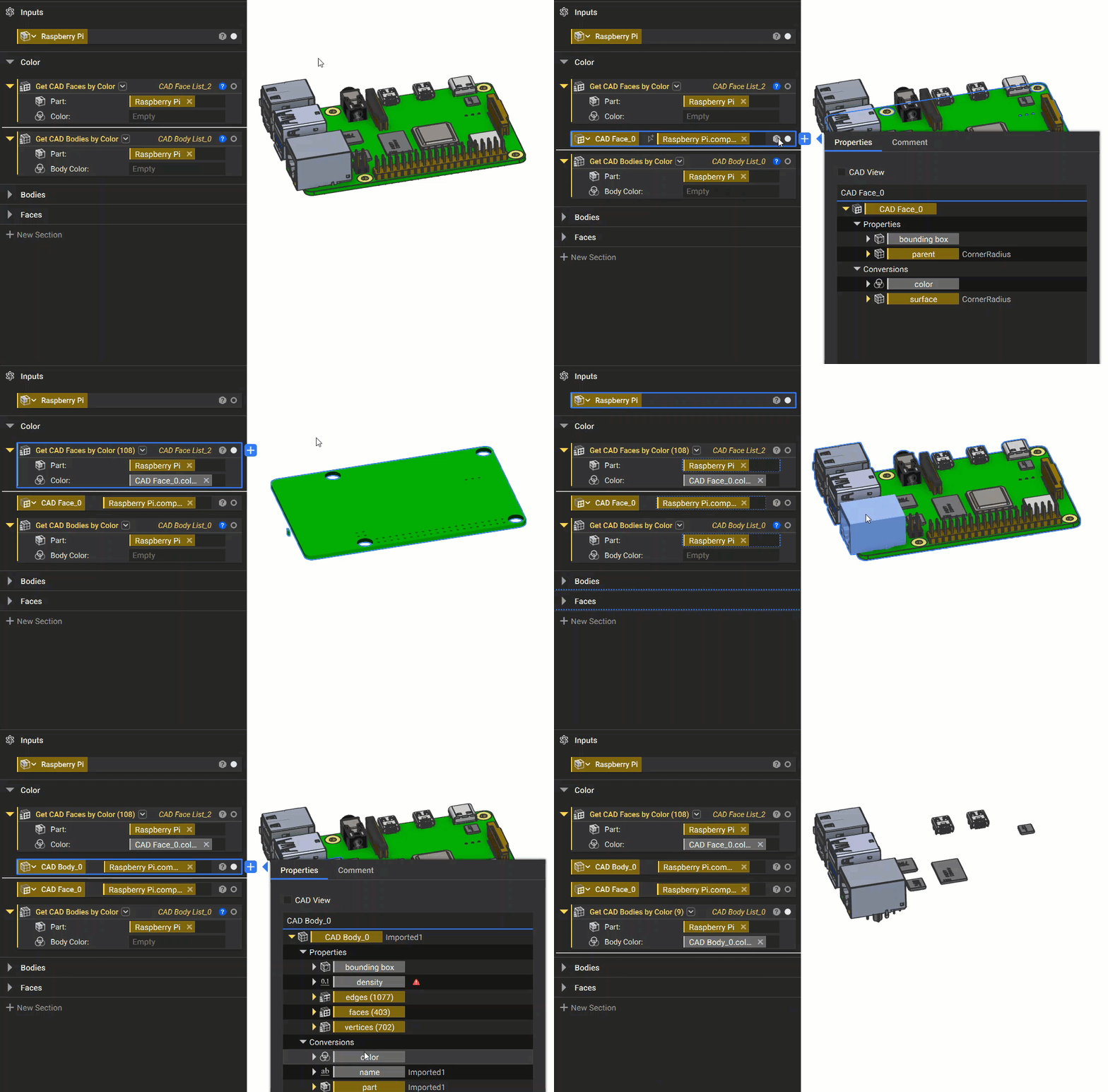
If you import your CAD part and it doesn’t have any color, make sure you change the Display Mode to “CAD Color”.

Turning Multiple CAD Faces into a Single Surface
Create a CAD Face List of faces you want to merge, then use the Stitch CAD Surface Bodies or the Stitch Adjacent CAD Faces block. These blocks merge multiple sheets within a tolerance range and output the results as a list.
This block comes auto-populated with a list, however. You cannot input a list into a list. You need to delete the auto-populated list to input the CAD faces.

Optional Challenge Problem
Estimated Time to Complete: 25 minutes
Challenge Problem Statement
Feel free to try our nTop Essentials challenge problem after completing the optional test problem.
Given the CAD file below, shell the part with a 3mm wall thickness inwards and add a hole for powder removal. Then, mesh the part with a 1mm tolerance and export it as a 3MF. For an added challenge, the hole for powder removal should resemble the shape highlighted below. Your final result should look something like the second image if you choose to create a hole resembling that CAD face.

Challenge Problem Solution
Transcript
In this lesson, we will walk through the answer to the optional test problem for our nTop Essentials course. So, in the problem, we were asked to Shell a part, 3 mm thickness for the wall, add a hole for powder removal, and then export as a 3mf file.
First, I have that part imported into nTop. You can either search in the search bar for that, drag it right in, or go into our Utilities Tab and Import Part. So, we have this here. Then we convert that part to an implicit body. When we’re doing any type of modeling operations or Boolean operations, we’ll need that to be an implicit. Then, in the modeling tab or in your search bar, you can search for our Shell feature. So, we put in that implicit bracket, that thickness is 3 mm, and we have that direction inwards. If I type I to isolate that and then type X to do a section cut, we can see I have the shelled part.
This part does not yet have a hole, so our next section is dedicated to that hole creation for powder removal. You could follow a similar step as shown in the follow-along lesson on creating those holes. But to show a different technique, if you wanted an extra challenge, I am making a hole that looks like this bottom face here. So, the first thing I do is make a variable that is that face and I’ll change that color so you can really see that. Then what I’ll do is Scale the object. So, I don’t want to have the entire face gone, I want it to just be a smaller shape that resembles that. So, I’ll Scale that object about 0.5 and the scale point will be the centroid of that face.
To get that scale point, you can go into Block Details under Properties, under Bounding Box, and then choose that centroid. And then if we look at that scaled object, we can see that it’s scaled. Next, I’ll convert this to an implicit body. So, let’s view that, and it looks a little bit different, and it looks a bit more like a rectangle. The reason for this is when we have a surface that we are converting to an implicit for something so thin, sometimes that visualization looks a little different than you might expect. But when we do the Thicken Body, it would do exactly what we expect. It has that right shape that we’re looking for, and this is a thickness of 12 mm. You could have chosen a different thickness. So, if I look at my shelled part again and I still have that section cut visible, we can see that this is going to go through that entire bottom surface. So, you could change how much you wanted for this thickened body to create this hole. The larger that thickness, the larger that hole will be, and you just want to make sure that it’ll go through that entire surface. So, I chose 12 mm. You may have something a bit different. You might not have used this CAD technique at all.
Last thing we’ll do is a Boolean Subtract. So, I’ll take that primary body, which is the shell part, and just subtract out that face to remove, which is our thickened body. And so now we have something like this. And let me go a little bit farther. We can see what this looks like. I also have a Blend Radius of 2 mm, so we can see that we have that rounding on that edge now.
Once I have this final part, the last step is to export this if I wanted to print it, for instance. So, our last section, which is export, we’ll use our Mesh from Implicit Body. You can search for that. You could also go into our Utility section. We have all of our conversions in here as well, where the body will be that final part. Tolerance I used as 1 mm, and I chose to keep this sharpened, and we get something like this. So, for a smaller tolerance, it would take a longer time to compute, but it would be a bit more precise. This is just an example, so I’m just going to have that 1 mm tolerance. You could have had something a little bit different. And then I’m using our Export Mesh, and for the path, all you have to do to make sure it’s a 3mf is just choose that you are just exporting it as a 3mf file. And that’s the answer to our optional test problem.
0:00 Problem Overview
0:23 Importing and Shelling the Part
1:13 Creating a Hole for Powder Removal
2:17 Understanding Implicit Body Visualization
3:30 Boolean Subtract and Blending
4:05 Exporting the Final Part
This video reviews the answer to the nTop Essentials challenge problem to shell a part, add holes for powder removal, and then export it as a 3MF file.
Example File:
This file was last updated in nTop 5.15.2