
Post Processing
After running a Topology Optimization, the raw results must be post-processed to prepare a component for DfAM or further implicit modeling.
Implicit Body from Topology Optimization
Once we have inspected our results and found an acceptable threshold value, we can convert the results into an Implicit Body.
Since most operations in nTop work with implicits, if you wish to apply any additional design changes to your final part (e.g., Boolean operations), converting the result to an implicit body using the Implicit Body from Topology Optimization block is imperative.
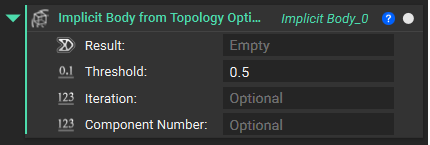
You may specify an element density threshold between 0 and 1 for the implicit body, which differs from the volume fraction (i.e., increasing the density threshold will increase the number of tetrahedral elements in select regions while keeping the volume fraction constant).
A higher density threshold will remove more material, while a lower one will keep more material. Select your density threshold by comparing results at different thresholds, and use a smaller filter size to see the difference between various density thresholds.
You may have the implicit body reflect a chosen iteration of the TopOpt, instead of the final solution (by default).
You may also specify a component number (i.e., FE component in your part) that will apply this function to a component of your topology optimization (if you have multiple FE components connected by tie constraints).
Smoothen Body
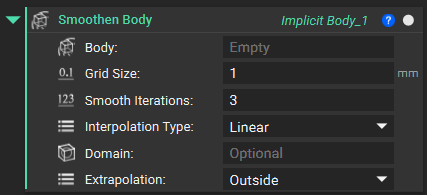
The raw TopOpt output has artifacts on its surface from the mesh that can be removed using the Smoothen Body block. The surface artifacts are roughly the size of the FE mesh size, so to capture and remove them, a smoothening grid size of half the mesh size is used in the Smoothen Body block. This is done using a Divide block.
Tip:
For Grid Size input, start with 2x greater than the element feature size, then iterate down slightly as needed.
Choose an Interpolation Type between grids (Cubic offers the smoothest geometry).
Optionally, you may apply the smoothing operation to a single domain (e.g., Region by Bounding Box) if you wish to smoothen some areas of your design space differently from others.
Consolidate the Part
The topology-optimized volume is now ready to be recombined with the interfaces of the original CAD geometry. This step will look different depending on your part. If you are following along, do this:
- Add an Implicit Body from CAD Body block
- Insert the Interfaces (all three CAD faces from Step 1)
- Add a Thicken Body block
- Insert the Implicit Body from CAD Body block
- Set the Thickness to 2 mm
- Add a Boolean Union block
- Delete the auto-generated list and input the Thicken Body block

- Add a Boolean Union block
- Input the Smoothened TopOpt and the Interface Bodies
- Set the Blend Radius to 2 mm (to keep the transitions between bodies congruent)

Lastly, perform a Boolean Intersect operation with your part and the original CAD body to ensure that the interfaces of the original design space are preserved.
- Add a Boolean Intersect block
- Input the TopOpt and Interfaces boolean union
- Input an Implicit Body from CAD Body block
- Input the Design Space
