
Orienting a Part
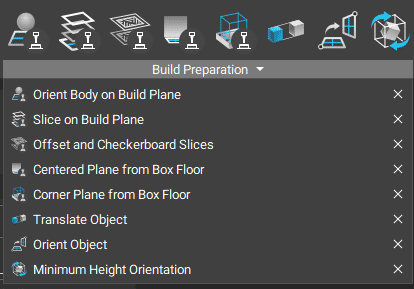
There are many methods for placing your part on the build volume. One approach is simply using the Translate Object and Rotate Object blocks, described briefly in 101: nTop Essentials. Below are other options that you can find in the Build Preparation section, which help orient your part and place it in the correct location.
Orient Object
You can use the Orient Object block to place and rotate your block at any location in your build volume. The block requires the object (implicit body, mesh, CAD, etc.), the source location, and the destination. The CB Move Object block in the 230: Intro to Automation course uses this block to function.
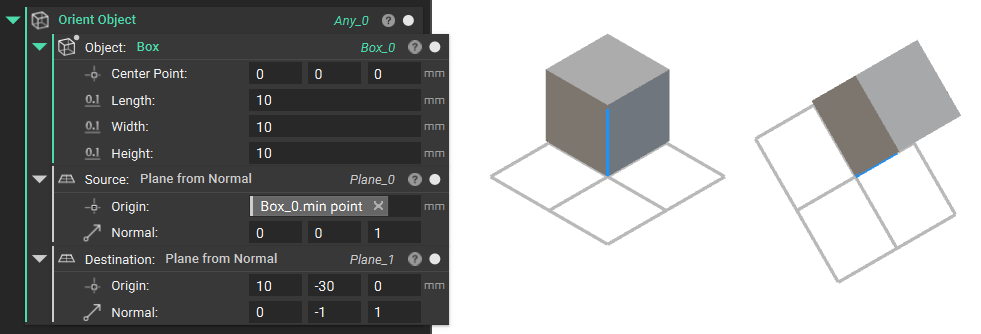
If you are printing multiples of the same part and would like them all placed on the build plate, you can put in a point list to place all those parts simultaneously. To learn more about working with lists, please check out the Lists section of our 230:Intro to Automation.
Orient Body on Build Plane
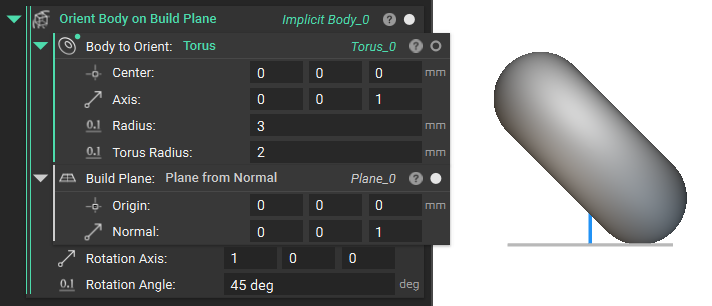
The Orient Body on Build Plane is a toolkit block that takes a body and places its lowest point on the given build plane. With this block, you also can rotate the body.
Minimum Height Orientation
The Minimum Height Orientation block creates an optimal orientation to minimize print duration. The output of the Minimum Height Orientation block is a transformation that minimizes the Z-Height of your object in preparation for manufacturing.
You would then use the Transform Object block to generate the oriented body. Add the Body you want to Object input and the Minimum Height Orientation block into the Transform input.
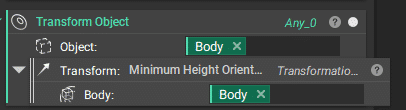
Note: The Minimum Height Orientation block only works with Implicit Bodies. If you want to orient a CAD Body, Mesh, etc., convert it to an Implicit Body first.
Minimum Support Orientation
You can use the Minimum Support Orientations block to orient a part to have the minimum amount of support. This block has two overloads: Implicit body and Mesh.
You can click on the chevron symbol next to the block’s name to choose a different overload.
Given the Body and Build Plane inputs, the block will provide several orientations that minimize the volume of support regions needed for the body. You can also select the Support Region to be All Regions, Internal Only, or External Only.
Similar to the Minimum Height Orientation block, this block produces a Transformation as an output, so use the Transform Object block to generate the oriented object.

Note: The Implicit Block overload is more robust and will likely provide more optimal results, while the mesh block version will converge on results much faster, but these may be less optimal.
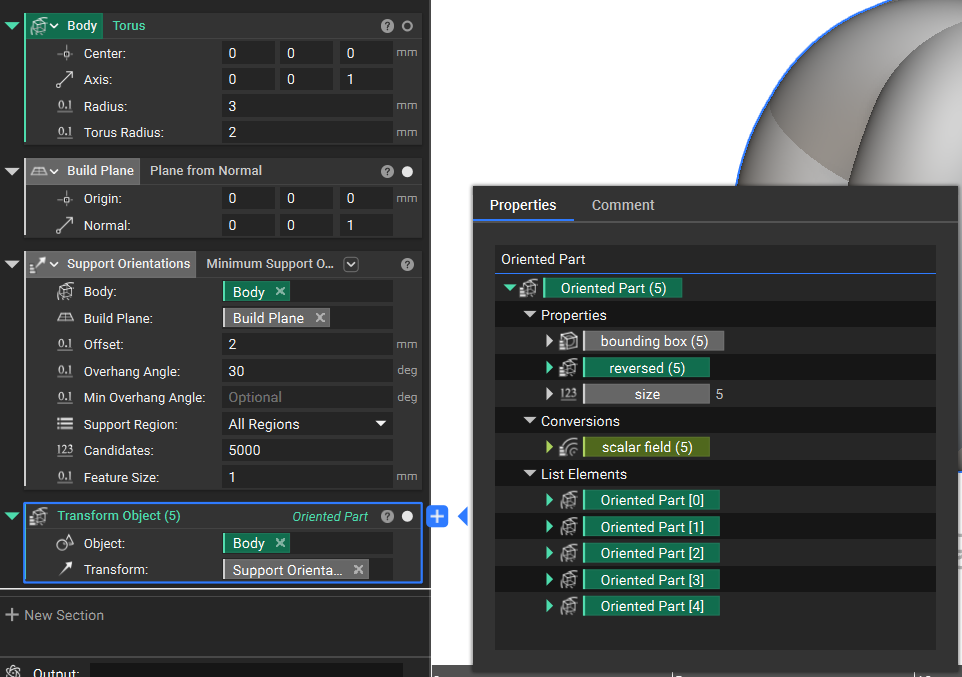
When you place the Minimum Support Orientations block in the Transform Object block, you will have a list of the options because several candidate orientations (typically 5) minimize the number of supports needed.
Use the List Element block or drag and drop a property chip from the list. Learn more from our 230: Intro to Automation course on working with lists.
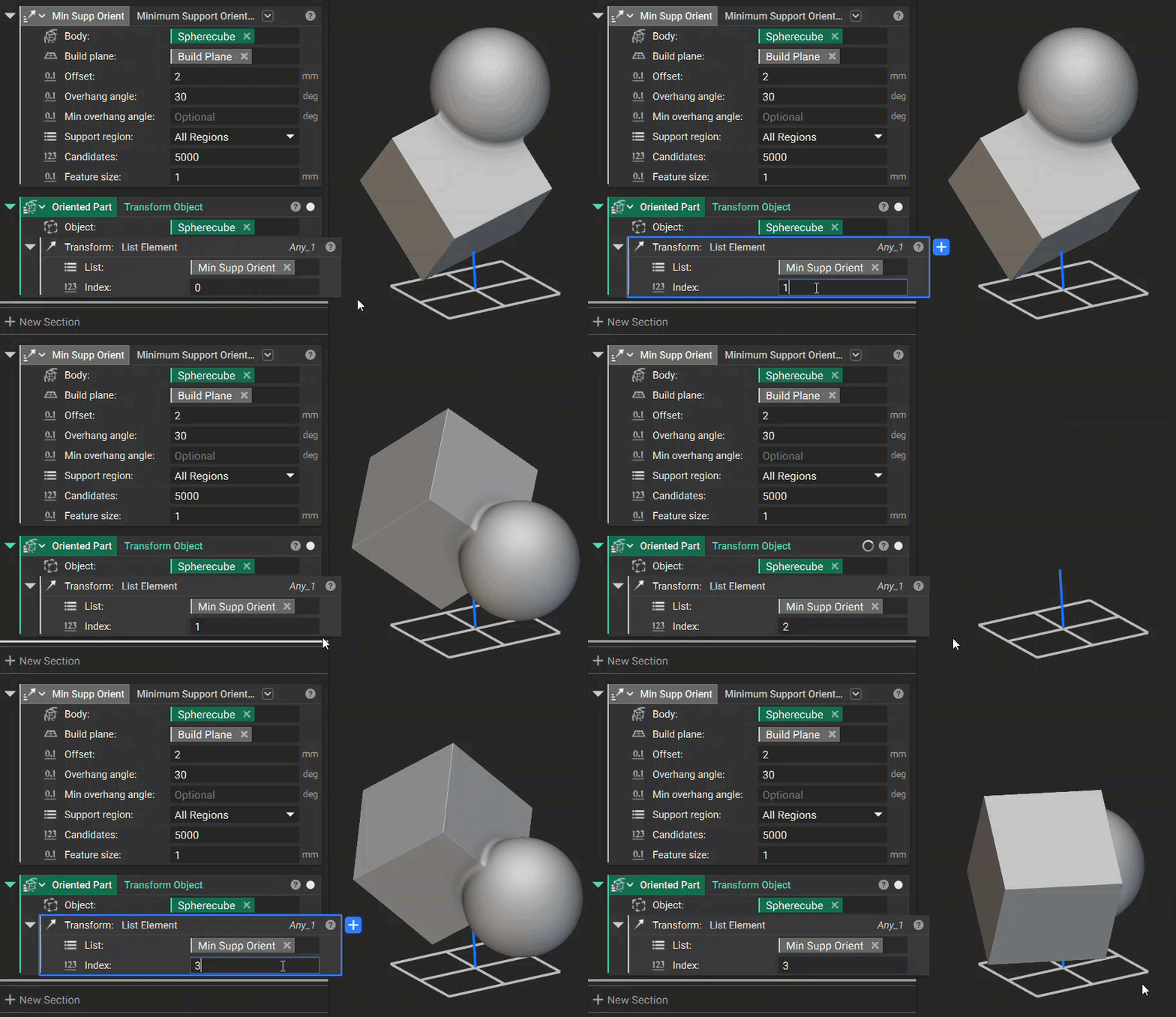
You can also sort the different support volumes produced with each of the orientations made to determine which option to choose, and you can see an example of this in the Support Article.