nTop Tips
Here are some tips to get faster and more efficient while working in the Notebook:
1. Finding Blocks
Unsure which block you need?
Use the Search Bar
Try typing a relevant keyword into the intelligent search bar to explore your options.

Or, Search in Place
Double-click on an empty space in your Notebook to see blocks.
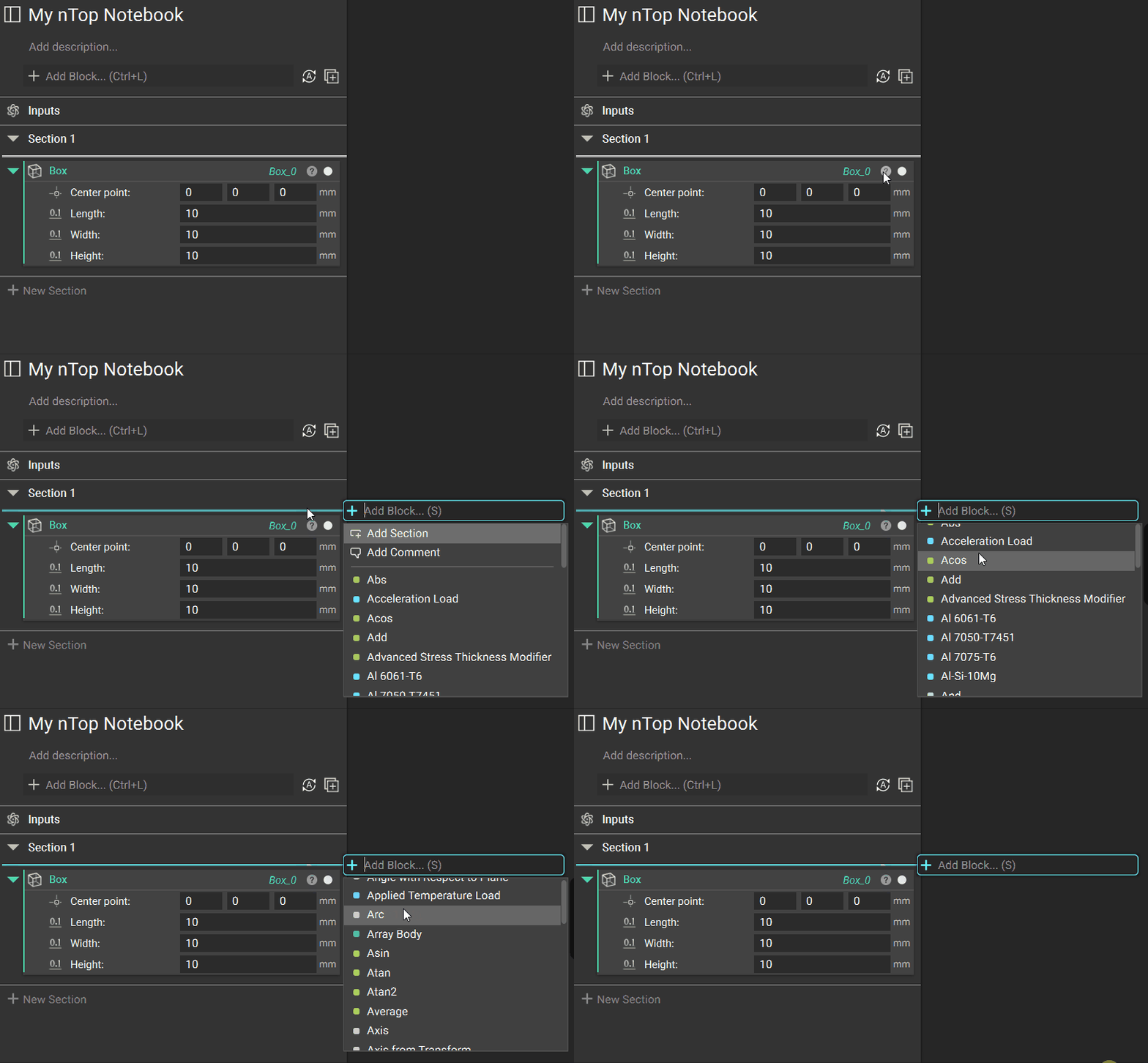
Activate Context Search by selecting a block and clicking on the “+” icon or pressing S on the keyboard.
Any option selected will become the outer nested block of the initial block. If there is already an outer nested block, the list will show only blocks that are compatible with both the inputs of the outer nested block and the output of the inner nested block.

Search results include visual indicators with colors representing the block output type and, where applicable, icons that differentiate lists, variables, and imported blocks.
2. Adding Blocks from within a Block
In addition to adding blocks from tabs in the ribbon and the search bar, there are two additional ways to add blocks to the Notebook. You can add a block directly into an input of an existing block in the Notebook using these methods. Only blocks with matching Types will be listed.
Double-click in an input box.
Blocks that are already in the Notebook will appear in the list first with an icon next to the name. This option is good for when you are not sure what block is needed next.

3. Copying and Duplicating Blocks
Right-click on a block to see the three options for copying or duplicating it:
‘Copy Selection’ or Ctrl + C allows you to create copies of one or multiple selected blocks, which you can paste at any location where the white line is placed within the same Notebook or in a different Notebook.
To select multiple blocks, hold Ctrl.
‘Paste’ or Ctrl + V brings only the selected blocks to the new Notebook.
‘Paste with References’ or Ctrl + Alt + V brings all associated variables to the new Notebook.

‘Duplicate’ simply makes a new copy of the block and a new copy of all blocks referenced or nested in that block.
Values are not linked between old and new.

‘Duplicate with References’ makes a new copy of the block but uses the original referenced or nested block.
Nested referenced blocks are not copied and will therefore update values when one of them is changed.
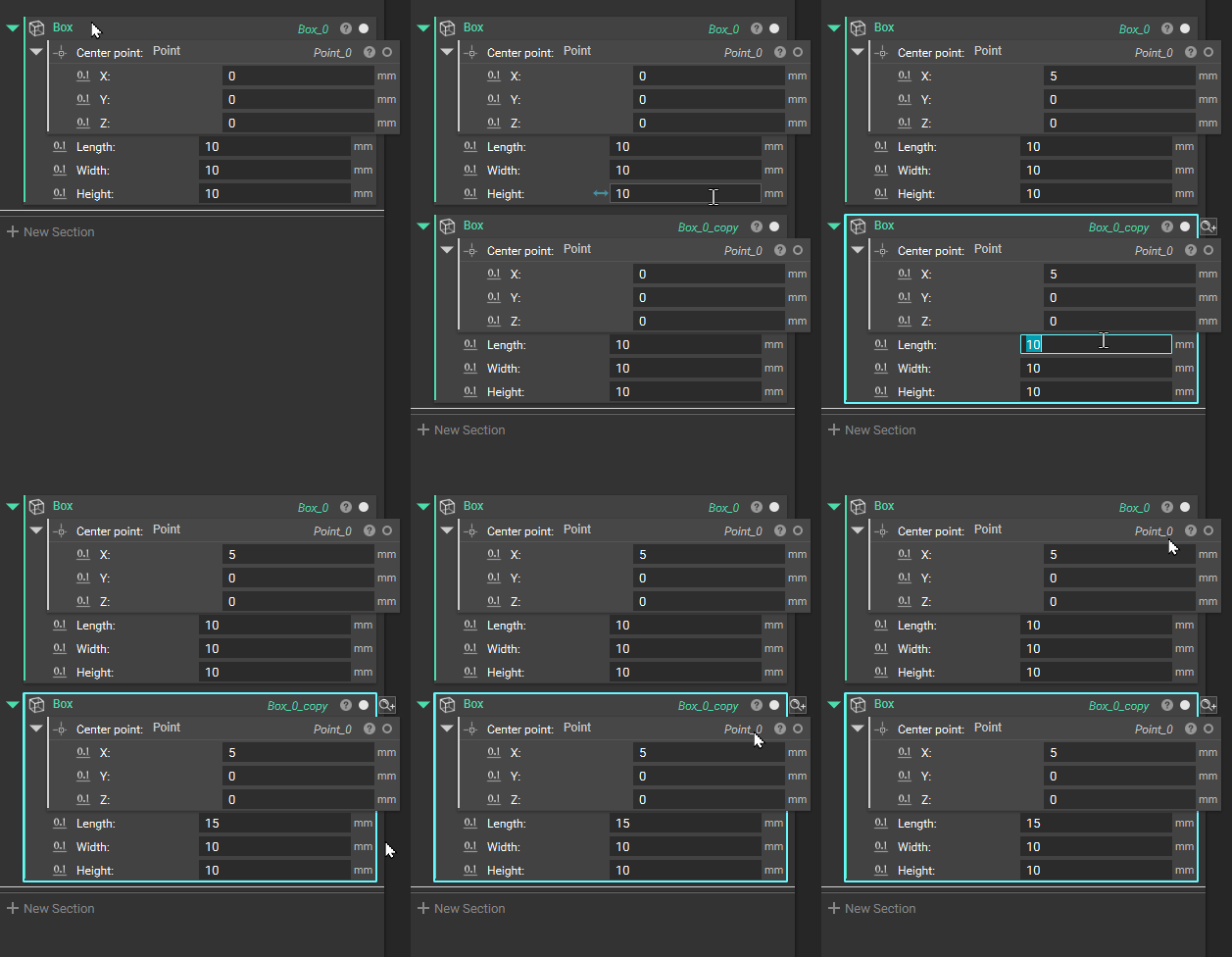
Ctrl + Drag creates a new instance of the same block.
Changes in either block are reflected in both.

4. Reusing Variable Chips
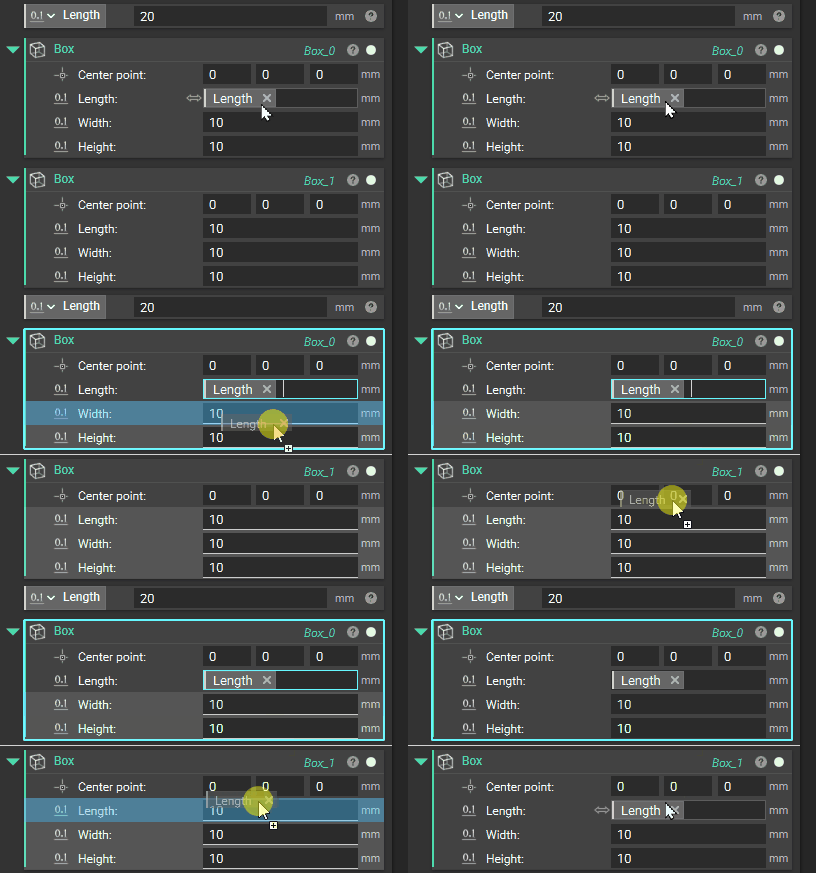
Just as you can create a new instance of the same block using Ctrl + Drag, it is possible to create a new chip of the same variable to be used in a different part of the workflow.
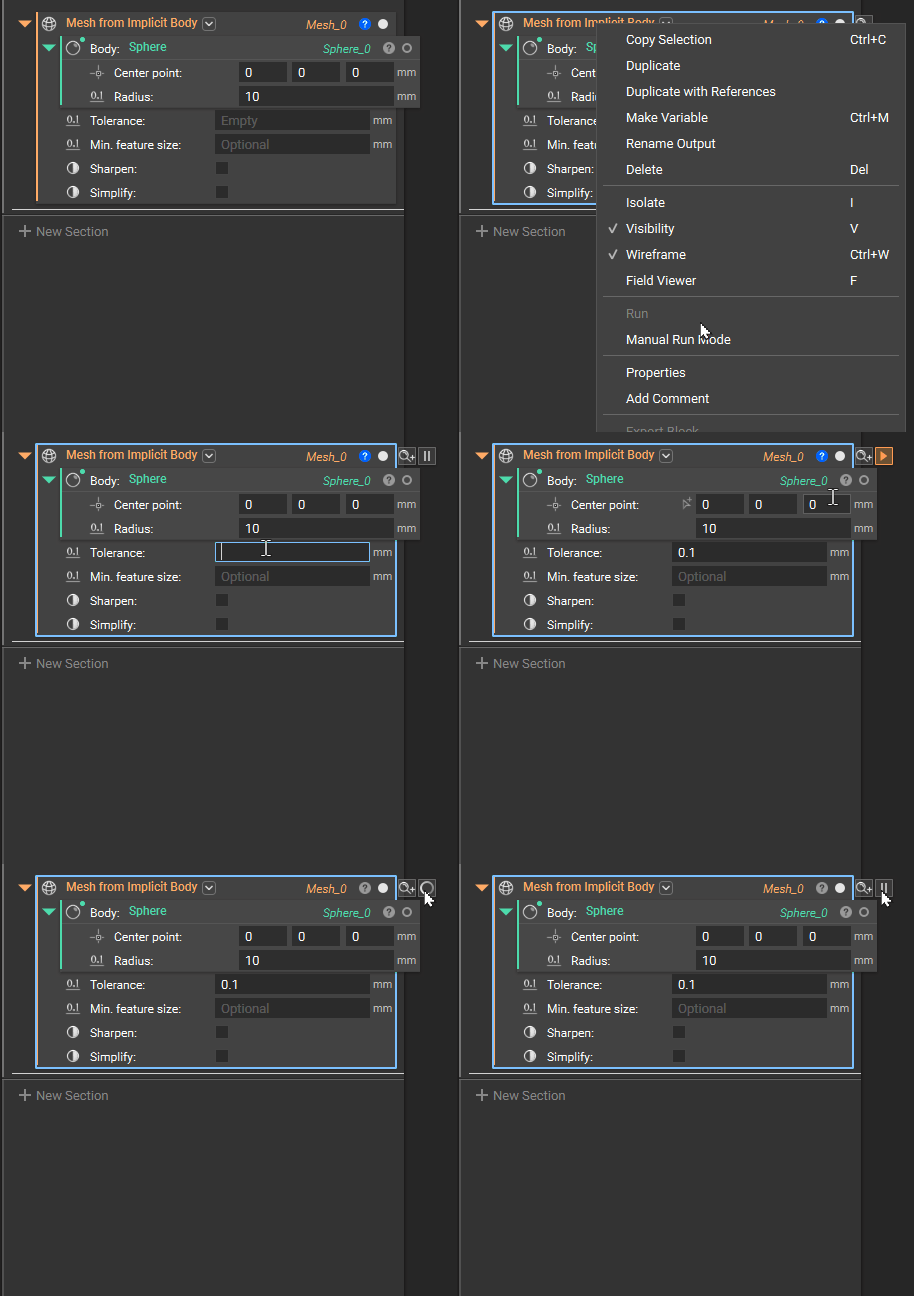
5. Pausing Automatic Block Computation
You may have noticed that any blocks that you have completely filled in run automatically. This happens by default after you either press enter or click outside of the block after satisfying all inputs.
You can stop block autorun for the entire Notebook or put breaks on specific blocks.
Toggle off Autorun Mode using the button next to the search bar. This will stop all blocks in the notebook from automatically computing.
After updating the inputs, you can run individual blocks by clicking on the green ‘Rebuild Block’ symbol that pops up next to the Info button at the block’s top right corner.
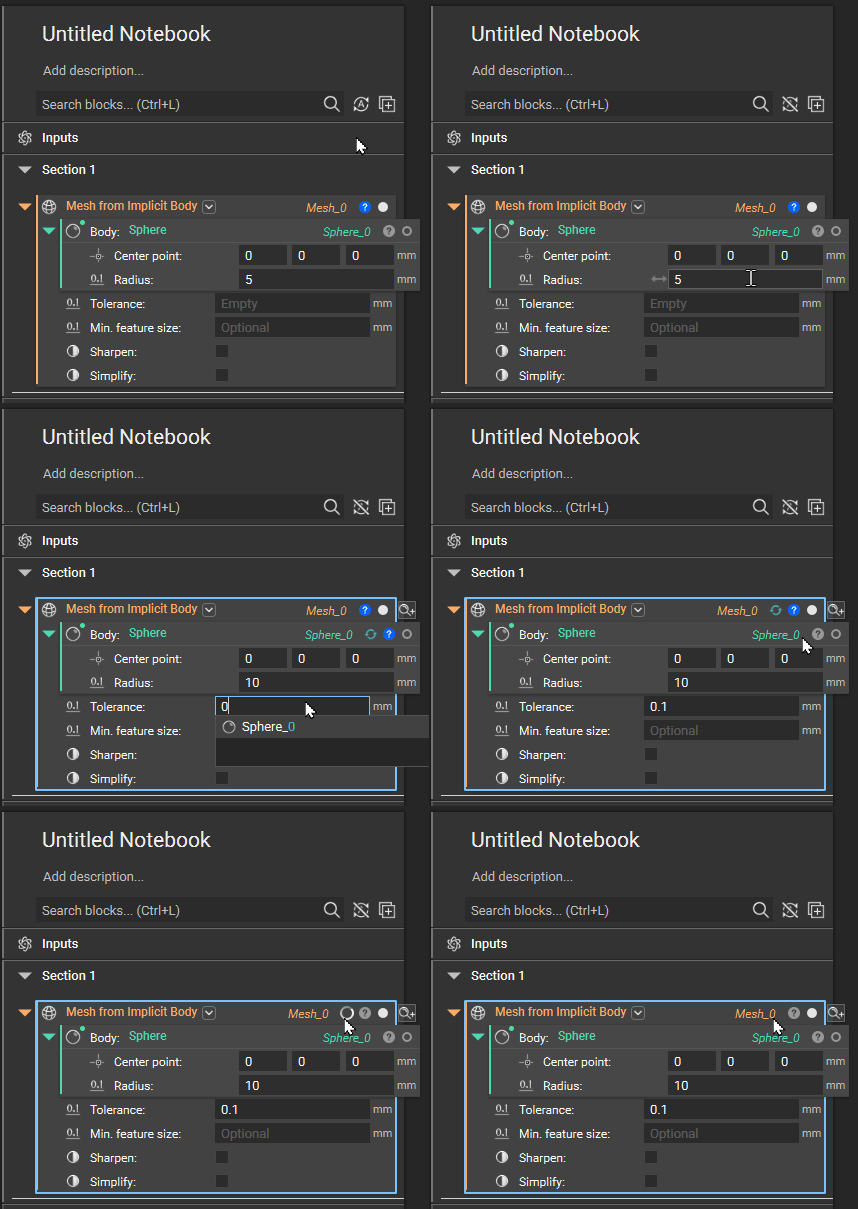
Select Manual Run Mode in the right-click menu of a block. This will stop that specific block (and consequently any downstream workflow) from automatically computing.
When changing inputs in preceding blocks or within the block, the ‘Manual Run Mode’ block will not run until you click the orange Run button at its top right-hand corner.